How to Connect Aurora Solar to Coperniq
Last updated: December 8, 2025
This guide will walk you through connecting your Aurora Solar account to Coperniq. Once connected, you can automatically import solar design projects, proposals, and customer data from Aurora into Coperniq.
Prerequisites
Before you begin, make sure you have:
- A Coperniq account with admin or appropriate permissions
- An Aurora Solar account with API access
- Your Aurora Solar Tenant ID and Bearer Token (API token)
Getting Your Aurora Solar Credentials
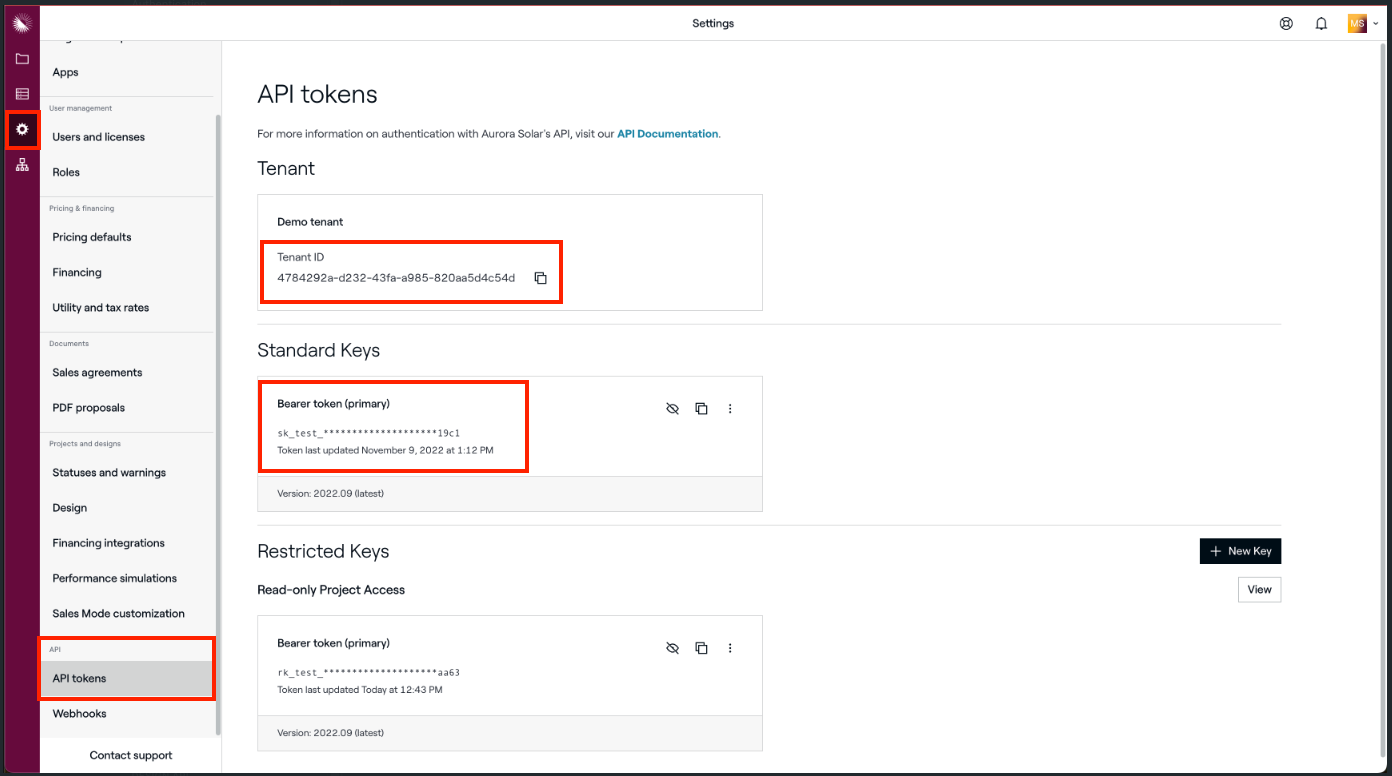
Before connecting Aurora to Coperniq, you'll need to obtain your API credentials from Aurora:
1. Log in to your Aurora Solar account
2. Navigate to your Account Settings or API Settings
3. Locate your Tenant ID (also called Organization ID)
4. Generate or retrieve your Bearer Token (API token)
- If you don't have a token, you may need to create one in Aurora's API settings
- Bearer tokens typically start with specific prefixes (production tokens don't have a prefix, sandbox tokens start with sand_)
Note: Keep these credentials secure. You'll need them in the next steps.
Aurora API Key Documentation: https://docs.aurorasolar.com/reference/authentication
Step-by-Step Connection Process
Step 1: Navigate to Integrations
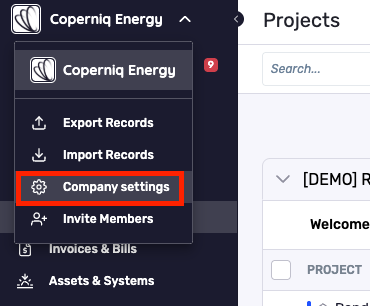
1. Log in to your Coperniq account
2. Go to Company Settings
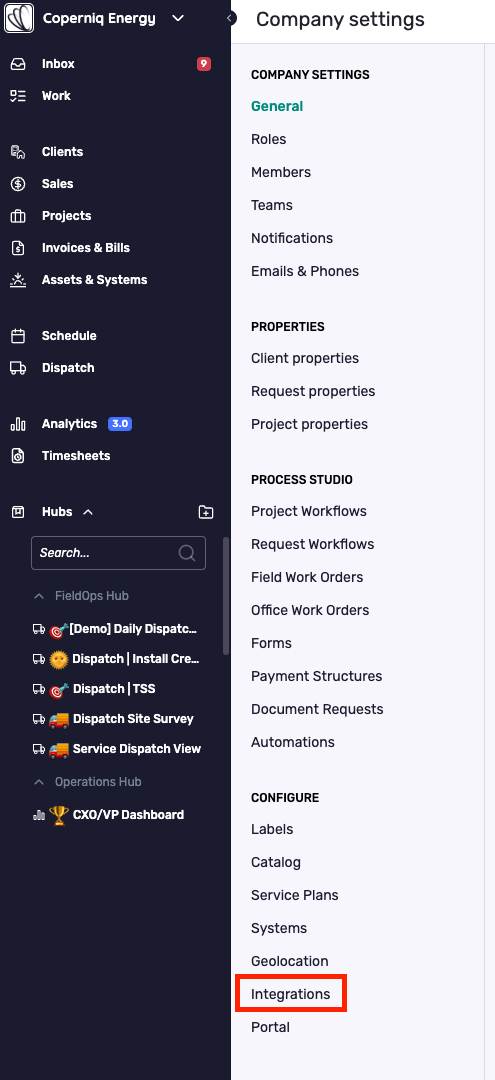
3. Navigate to Integrations under the Configure section in the settings menu
4. Find the Proposal Tools section
Step 2: Locate Aurora Solar
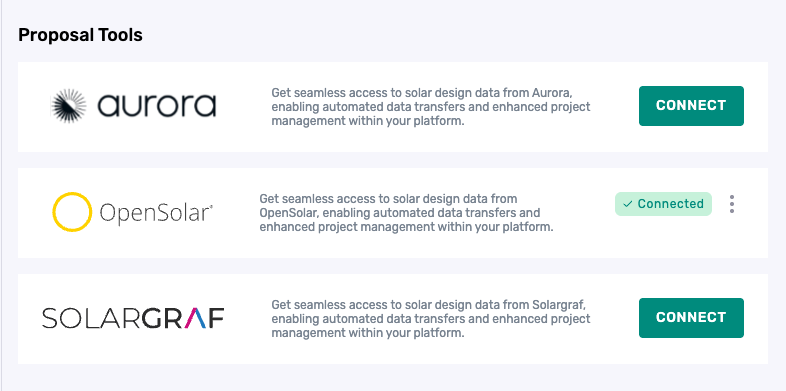
Step 3: Initiate the Connection
1. Click the Connect button next to Aurora Solar
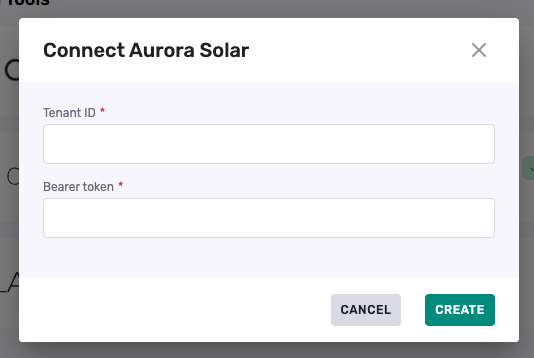
2. A connection dialog will open asking for your Aurora credentials
Step 4: Enter Your Aurora Credentials
1. In the connection dialog, you'll see two fields:
- Tenant ID: Enter your Aurora Solar Tenant ID (Organization ID)
- Bearer Token: Enter your Aurora Solar API Bearer Token
2. Fill in both fields with the credentials you obtained from Aurora
3. Click Create to establish the connection
Note: Coperniq will verify your credentials with Aurora before completing the connection. If the credentials are invalid, you'll see an error message.
Step 5: Complete the Connection
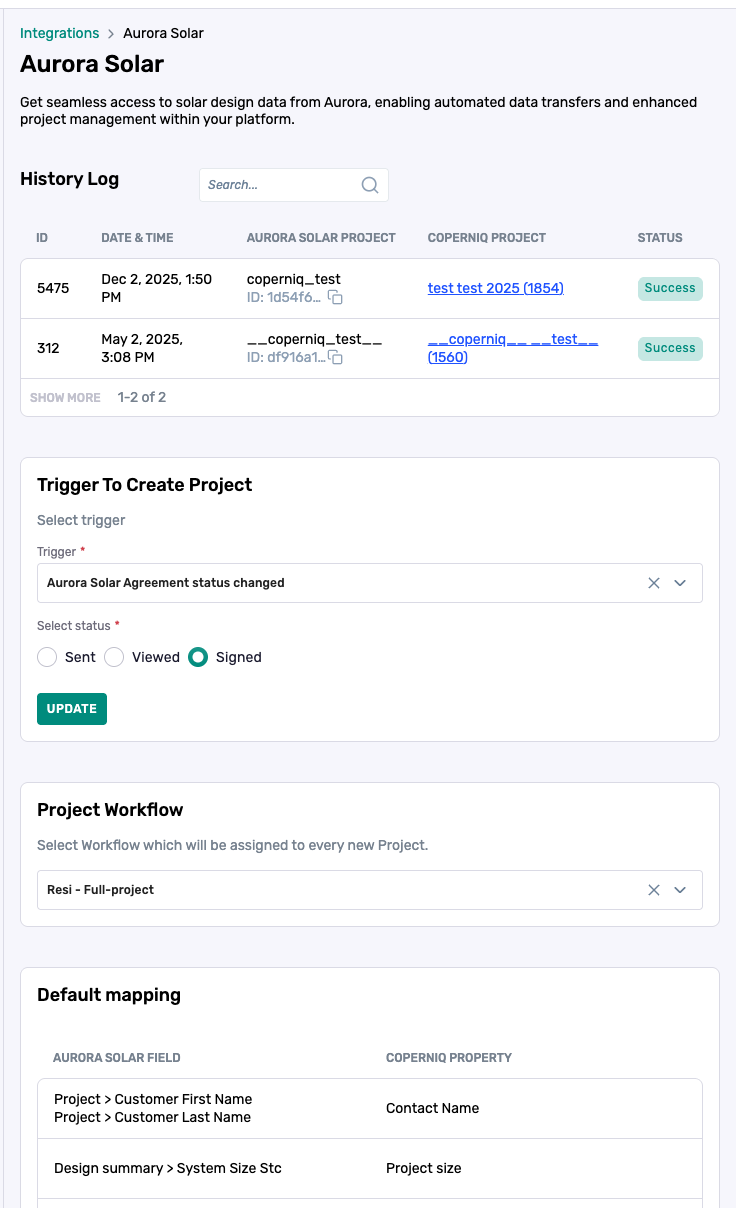
1. After successful connection, you'll be automatically redirected to the Aurora Solar integration configuration page
2. You should see the integration is now active and ready to configure
3. A default trigger is automatically created for "Agreement Status Changed" → "Signed" (this means projects will be created when agreements are signed in Aurora)
Post-Connection Configuration
After connecting Aurora Solar, you'll need to configure several settings to control how the integration works:
Configure Trigger Settings
This determines when projects are automatically created in Coperniq from Aurora:
1. On the integration configuration page, find the Trigger To Create Project section
2. You'll see the default trigger is set to:
- Event: Aurora Solar Agreement status changed
- Status: Signed
3. You can modify this trigger by:
- Changing the event type (Agreement status changed or Project status changed)
- Changing the status value (Sent, Viewed, or Signed for agreements)
4. Click Save to apply your changes
Available Trigger Options:
- Agreement Status Changed: Triggers when an agreement status changes
- Options: Sent, Viewed, Signed
- Project Status Changed: Triggers when a project status changes in Aurora
Tip: The default "Signed" trigger is recommended for most use cases, as it creates projects when customers have committed to the proposal.
Select Workflow Template
Choose which workflow template should be used for projects imported from Aurora:
1. Find the Workflow section on the configuration page
2. Select a workflow template from the dropdown
3. All projects imported from Aurora will be assigned to this workflow
4. Your selection is saved automatically
Note: If you don't select a workflow, projects may be created without a workflow assignment.
Standard Field Mappings
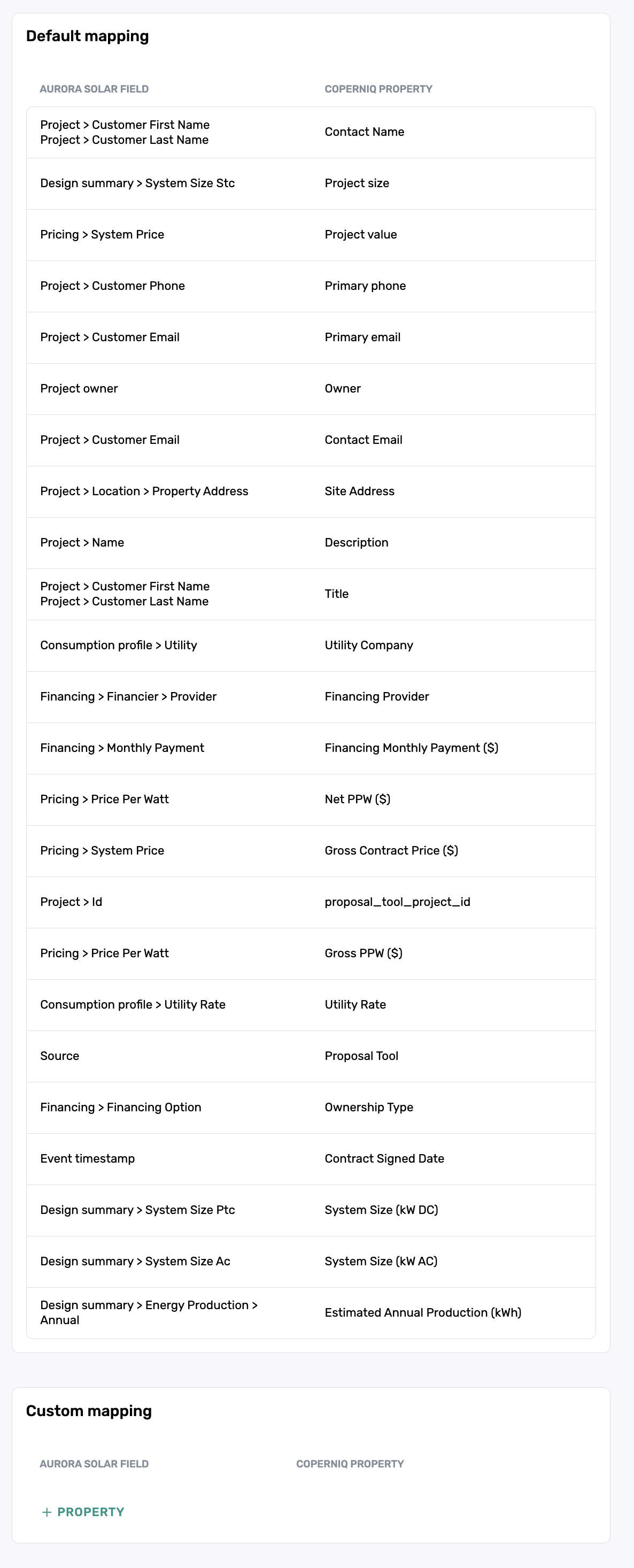
1. Find the Standard Properties Mapping section
2. Review the default field mappings (these are pre-configured for common fields)
Note: These fields are not customizable.
Configure Custom Property Mappings (Optional)
If you have custom properties in Coperniq that you want to populate from Aurora:
1. Find the Custom Properties Mapping section
2. Click Add Mapping to create a new mapping
3. Select the Coperniq custom property from the dropdown
4. Select the corresponding Aurora field path
5. Your mapping is saved automatically
Note: The data types of the fields must align between the two programs. For instance, when mapping an Aurora text field, you must select a corresponding text field in Coperniq for proper mapping.
Set Matching Strategy
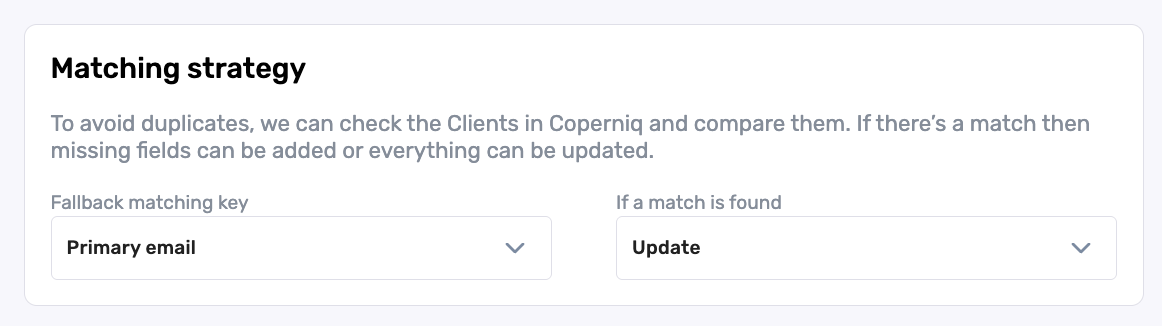
Control what happens when the integration finds existing projects in Coperniq:
1. Find the Matching Strategy section
2. Choose one of the following options:
- Enrich: Update existing projects with new information from Aurora
- Replace: Replace existing projects with Aurora data
- Skip: Leave existing projects unchanged (don't import duplicates)
3. Your selection is saved automatically
Tip: "Enrich" is recommended if you want to keep existing project data but update it with the latest information from Aurora.
Verifying the Connection
To verify your connection is working:
1. Check the Integration Log section on the configuration page
2. Look for recent sync activity
3. Sign a test agreement in Aurora (or trigger the configured event)
4. Check Coperniq to see if a new project was created
5. Review the project details to ensure data was imported correctly
How the Integration Works
Once configured, the integration works automatically:
1. When an event occurs in Aurora (based on your trigger configuration):
- The integration receives a webhook from Aurora
- It fetches the complete project data from Aurora's API
2. Data is imported into Coperniq:
- A new project is created (or existing project is updated based on matching strategy)
- Customer contact information is created or updated
- Project details (address, system size, value, etc.) are populated
- Proposal documents and design files are imported
- Line items and pricing information are synced
3. The project is ready in Coperniq:
- The project appears in your Coperniq project list
- It's assigned to the configured workflow template
- All mapped fields are populated with Aurora data
Troubleshooting
Connection Fails with Invalid Credentials
- Double-check your Tenant ID and Bearer Token
- Verify the token hasn't expired (regenerate if needed)
- Make sure you're using the correct credentials for your Aurora environment (production vs. sandbox)
- Try logging into Aurora directly to verify your account is active
Can't See Aurora in Integrations
- Make sure you have the appropriate permissions in Coperniq
- Contact the Coperniq support team if you don't see the Integrations section
Projects Not Being Created
- Verify your trigger configuration matches the events happening in Aurora
- Check the Integration Log for any error messages
- Ensure you've selected a workflow template
Data Not Mapping Correctly
- Review your field mappings in the Custom Mapping section
- Check that the Aurora field paths are correct
- Verify that the Coperniq fields exist and are the correct type
Disconnecting Aurora Solar
If you need to disconnect Aurora Solar:
1. Go to the Integrations page
2. Find Aurora Solar (it should show as connected)
3. Click the three-dot menu (⋮) next to the integration
4. Select Disconnect
5. Confirm the disconnection
Warning: Disconnecting will stop all syncing and webhook processing. Existing imported projects will remain in Coperniq, but no new data will be imported.
Next Steps
Once your Aurora Solar integration is connected and configured:
1. Test the Integration: Sign a test agreement in Aurora to verify projects are created correctly
2. Review Field Mappings: Ensure your Aurora data is mapping correctly to Coperniq fields
3. Configure Workflow: Make sure your selected workflow template is appropriate for Aurora projects
4. Monitor Sync Activity: Check the Integration Log regularly to ensure syncing is working as expected
5. Train Your Team: Make sure your team knows that projects will automatically appear in Coperniq when agreements are signed in Aurora
Need Help?
If you encounter any issues or have questions about the Aurora Solar integration:
- Review the Integration Log for specific error messages
- Verify your Aurora API credentials are correct and active
- Check that your trigger configuration matches your workflow in Aurora
- Contact the Coperniq support team for assistance at support@coperniq.io