Configure Your Coperniq Account to Accept Payments
Last updated: June 22, 2026
Goal
This article guides you through connecting Stripe payments to your Coperniq account to enable payment processing.
Steps
1. Navigate to Company Settings
From your Coperniq account, click the Settings icon at the bottom-left of the main navigation menu to open Company Settings.

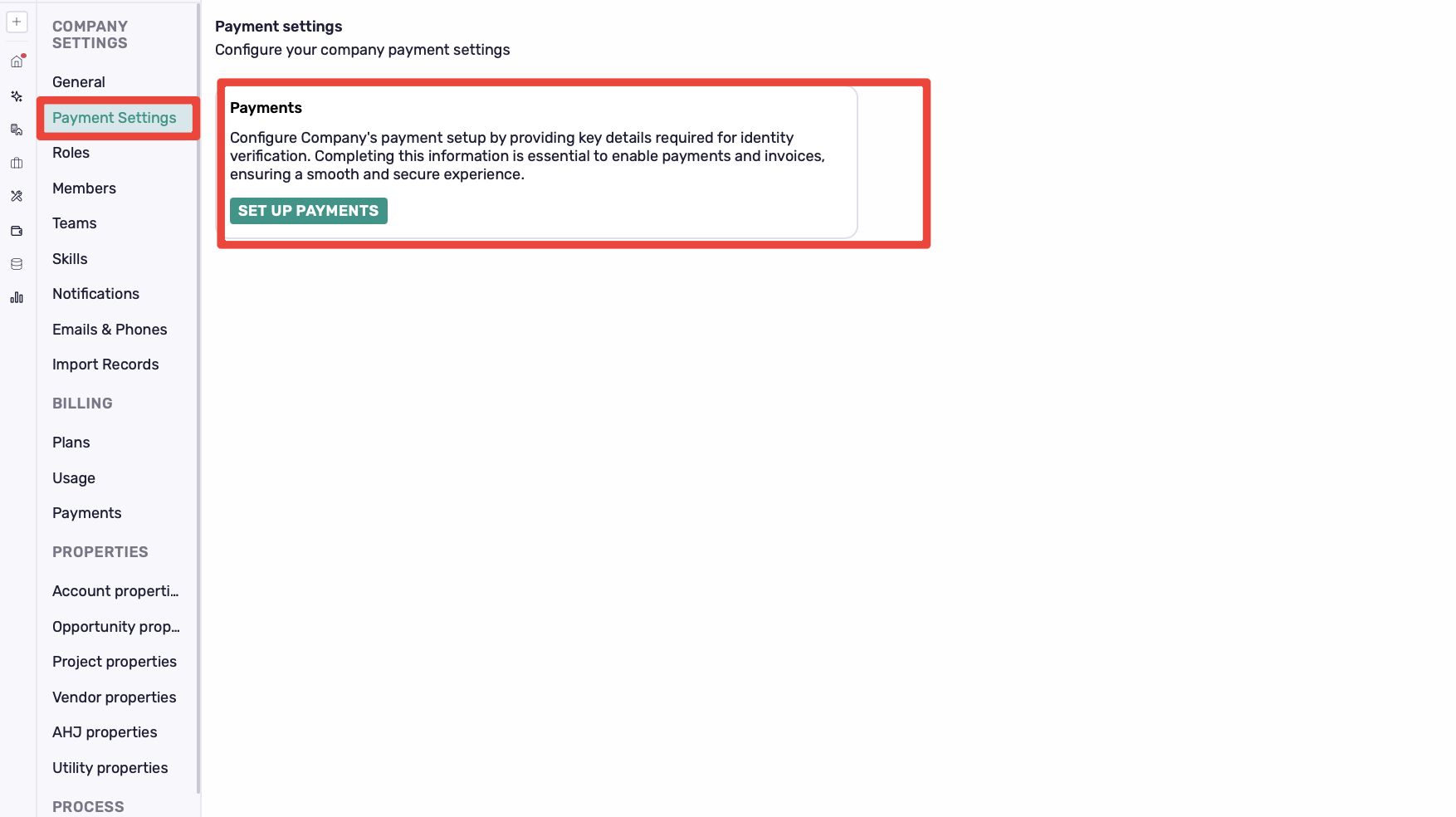
2. Click “Set Up Payments”
After clicking into Company Settings, select Payment Settings from the left-side menu. On the Payment Settings page, locate the Payments section and click Set Up Payments.
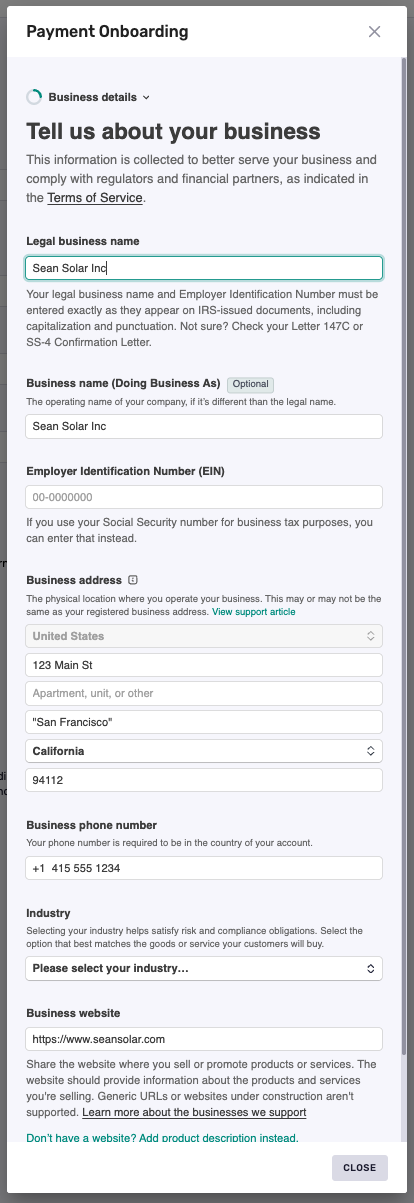
3. Complete the Payment Onboarding
Follow the pop-up prompts to enter your business details, owner details, and bank information.
5. Review and Finalize Setup
After granting permission, you will be automatically redirected back to the Coperniq Company Settings page.
Verify that the status next to your chosen payment gateway now shows as Connected or Active.
Troubleshooting
If the connection fails, ensure you have entered the correct credentials for your payment gateway account.
Contact support@coperniq.io with any other issues.