Mobile App: Manage Work Orders and Forms
Last updated: November 18, 2026
Use the Coperniq mobile app to manage work orders and forms while you are in the field. From mobile, you can open work orders, review key information, update the status, add comments, track time, upload files, and complete forms.
Open a work order
You can open a work order from places such as Schedule, a project’s Work tab, or Search.
Open the Coperniq mobile app.
Find the work order from Schedule, Search, or the related project.
Tap the work order to open it.
Review the work order details and available tabs.
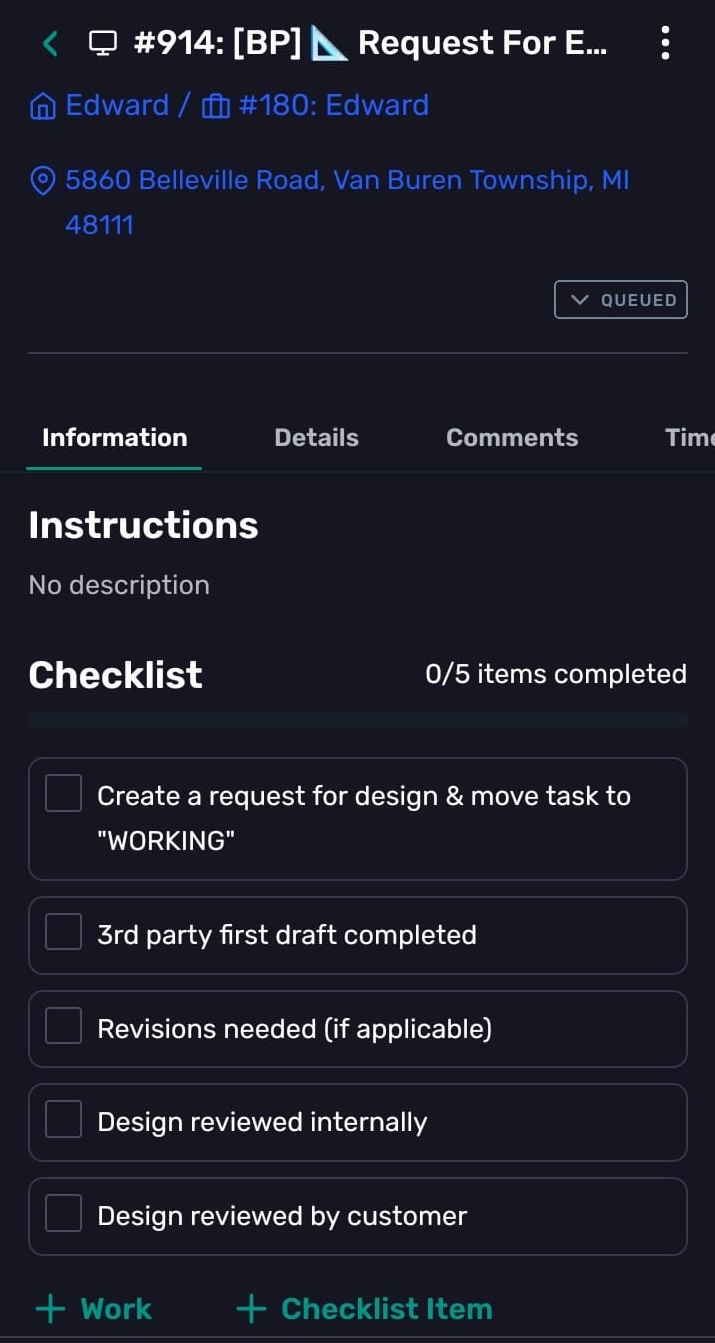
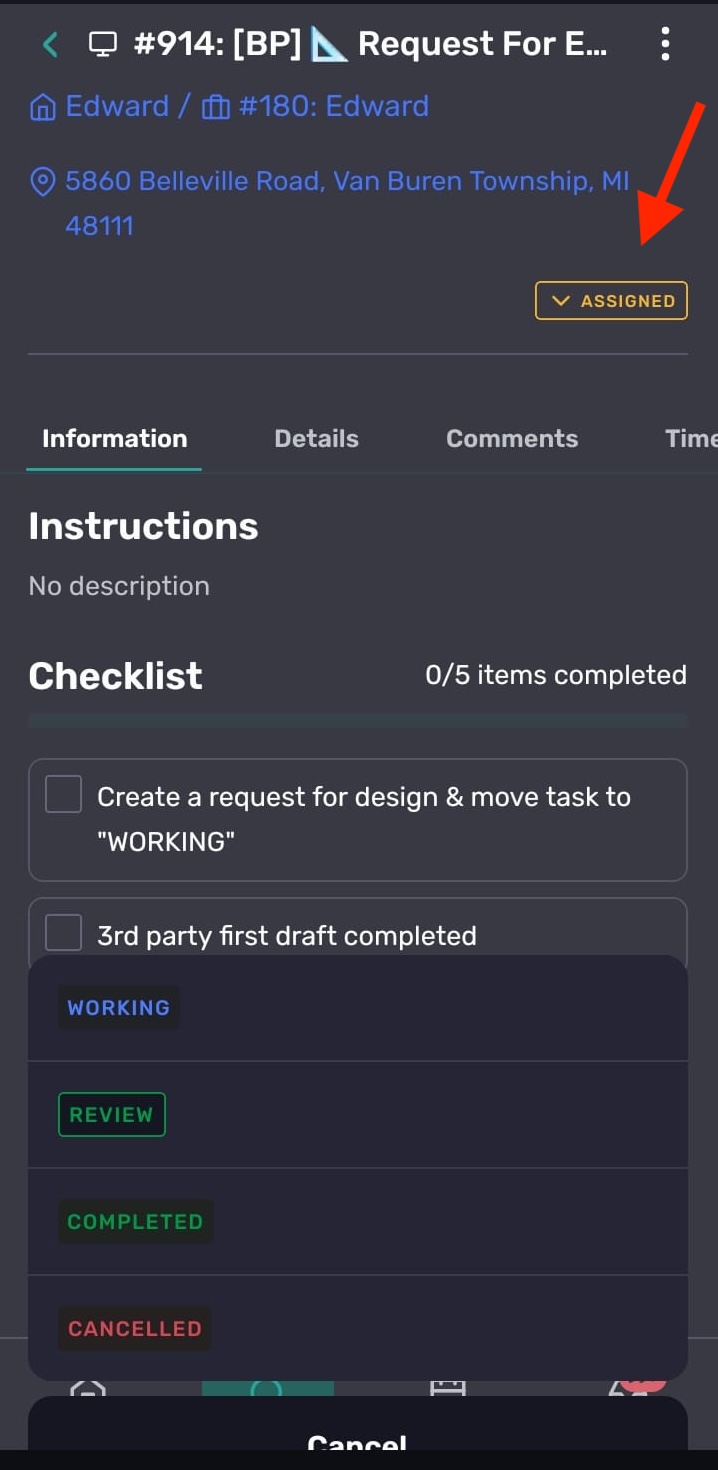
Update the work order status
To update the status, tap the status badge and choose the next available status. The statuses you can select depend on the work order type, your permissions, and the current status.
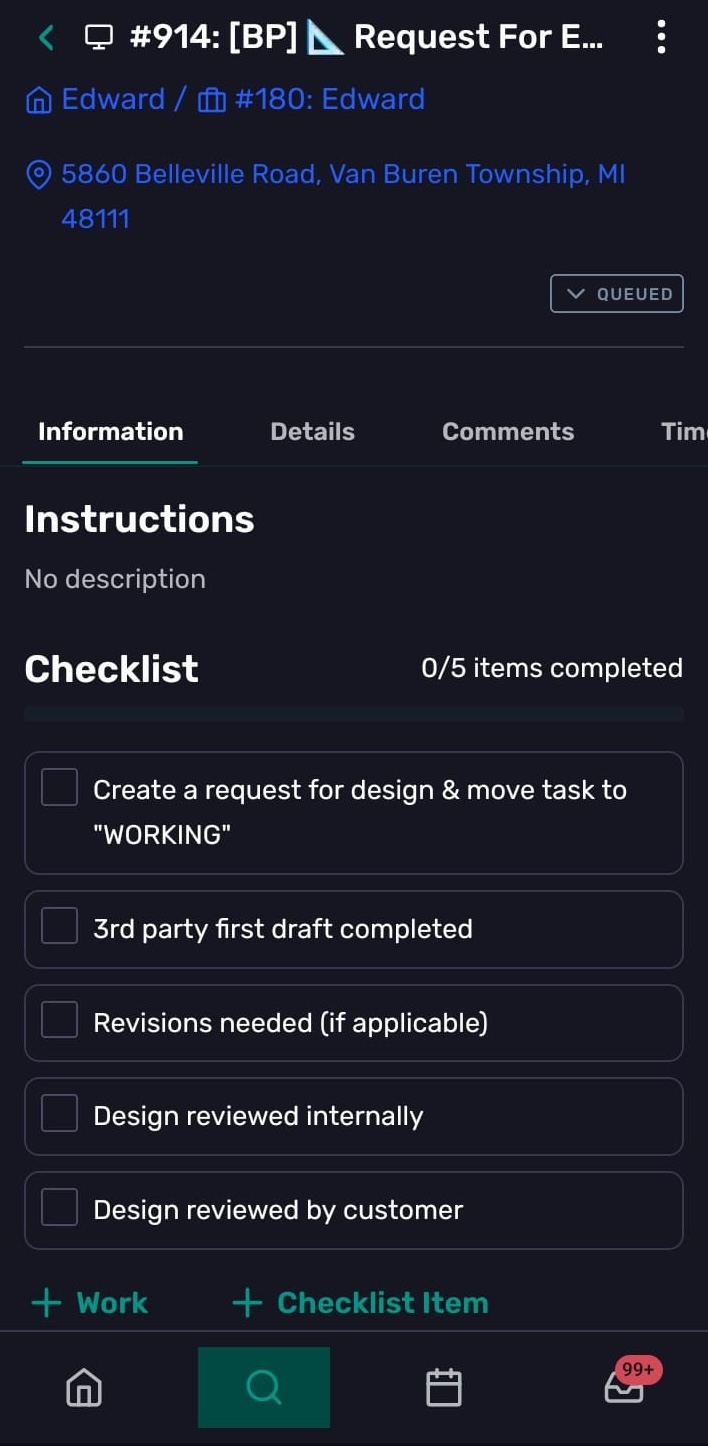
Review work order tabs
A work order can include several tabs. The tabs you see depend on the work order type, template, company setup, and your permissions.
Information
Use Information to review the main work order content. This can include instructions, description, checklist items, visits, files, measurements, and other sections configured for the work order.
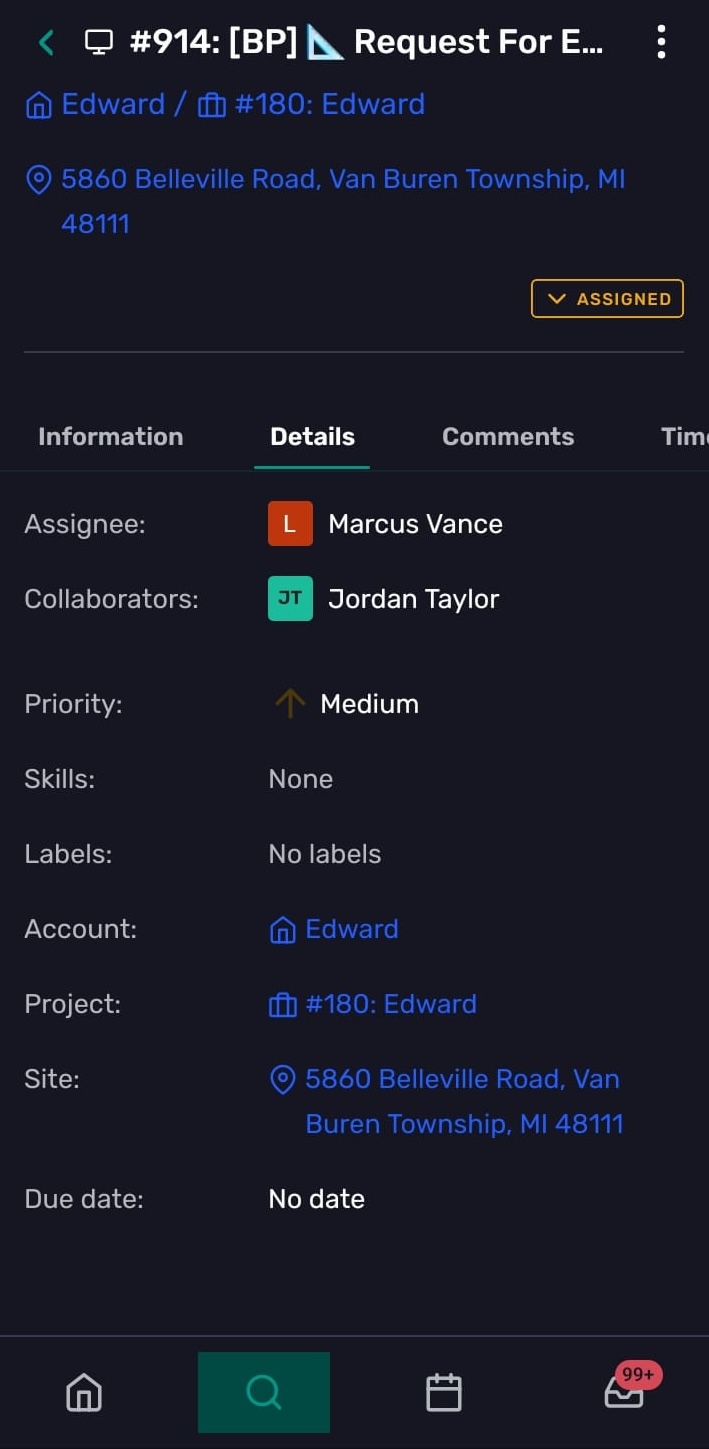
Details
Use Details to review the work order’s record information, such as assignees and other work order fields. If you have the right permissions, editable details can be updated from mobile.
Comments
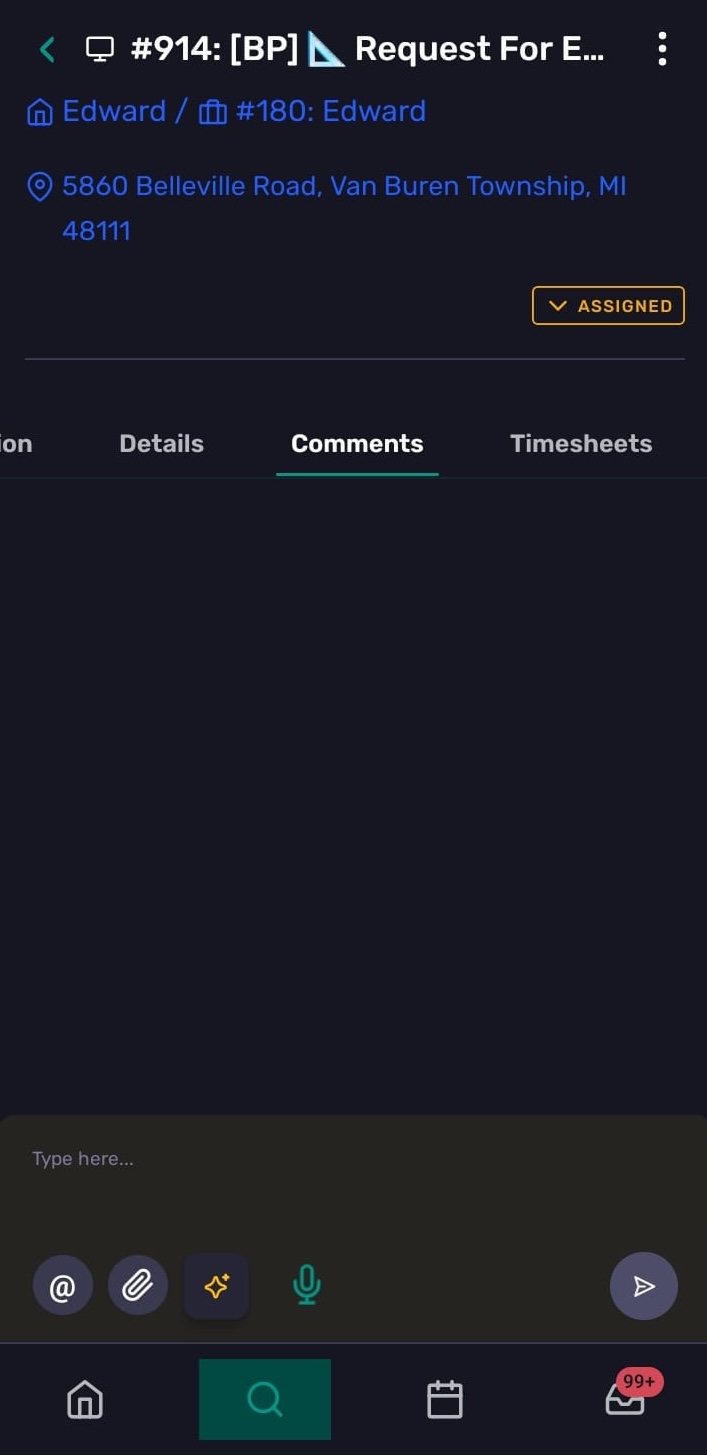
Use Comments to add updates from the field. Comments are the place for notes, blockers, review context, and other information the office team should see.
To add a comment:
Open the work order.
Tap Comments.
Type your comment in the comment box.
Attach files or images with the attachment option if needed.
Submit the comment.
Comments can support replies, editing, @mentions, and attachments. Sending may be blocked until attachments finish uploading.
Timesheets / Financials
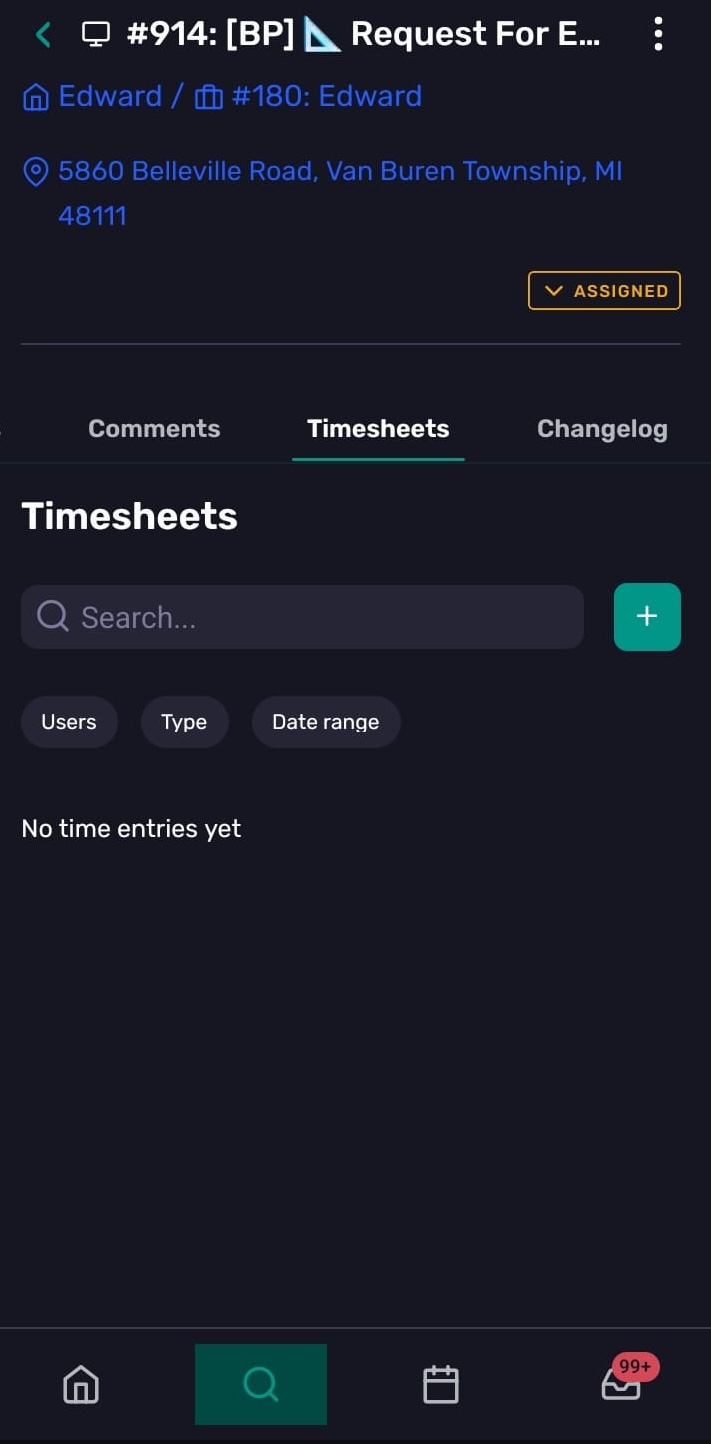
Use Timesheets to review time entries connected to the work order. For field work, the work order may also show quick actions such as clocking in and clocking out so technicians can track time from mobile.
Changelog
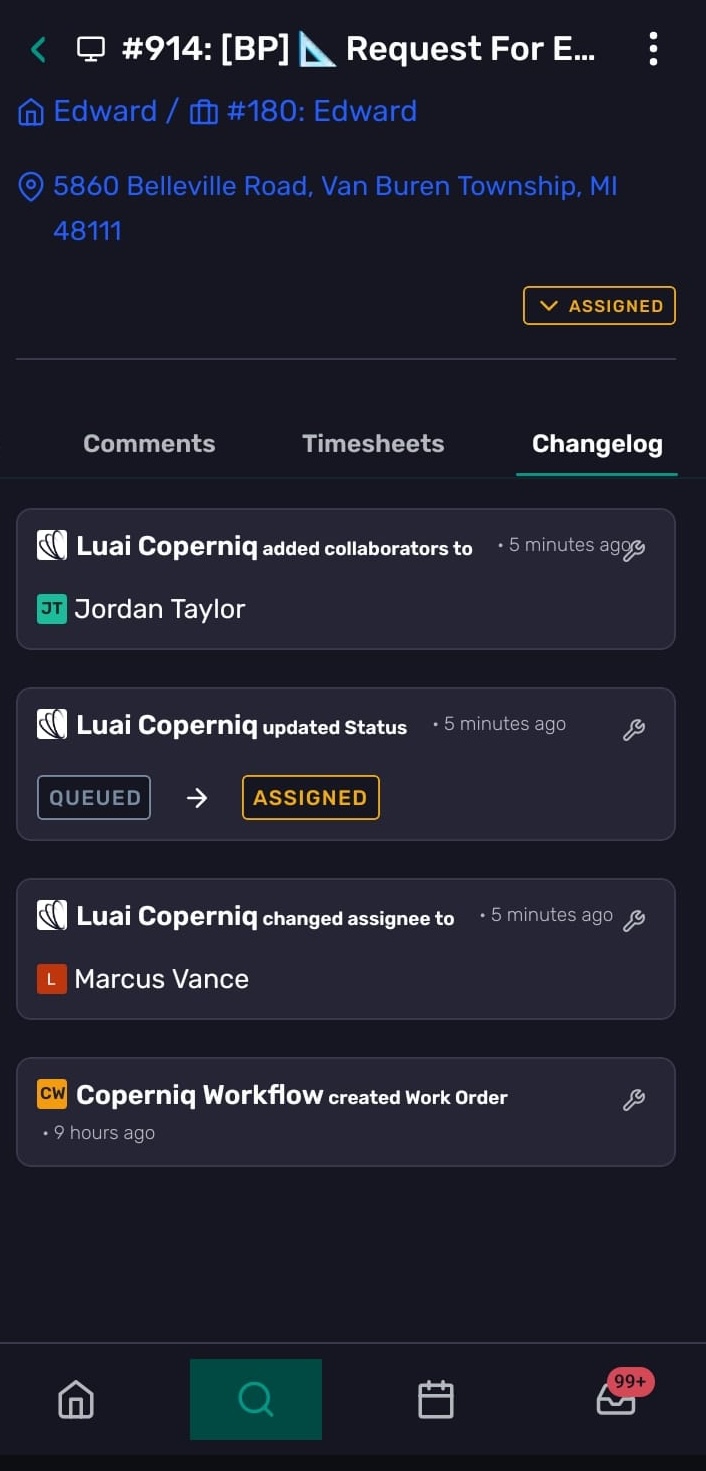
Use Changelog to review the work order activity history, including timeline changes and updates made to the work order.
Open a form
Forms can be part of a work order checklist, but they can also exist independently. You may open forms from places such as a work order checklist, a project’s documents or work area, an opportunity’s work area, or related field workflows.
To open a form from a work order:
Open the work order.
Go to the Information tab.
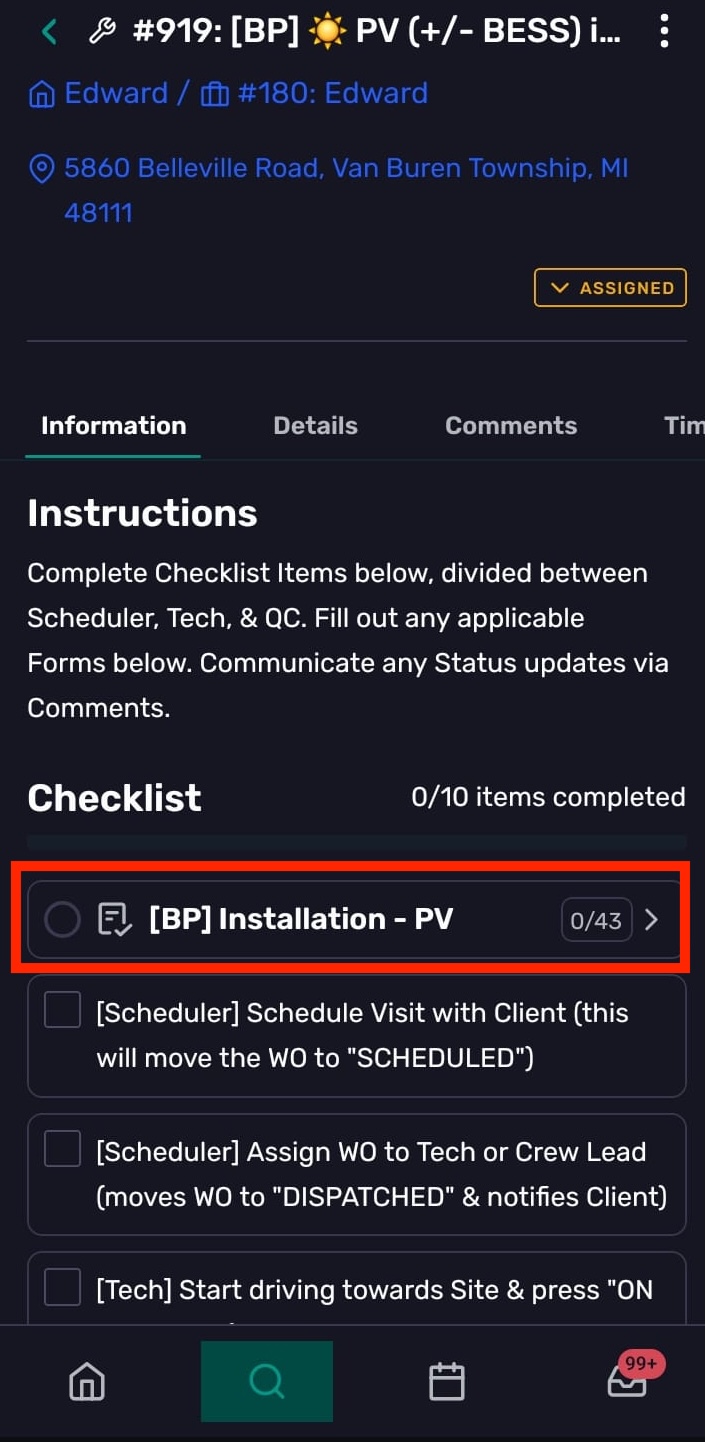
Find the checklist section.
Tap the form item you need to complete.
Review form tabs
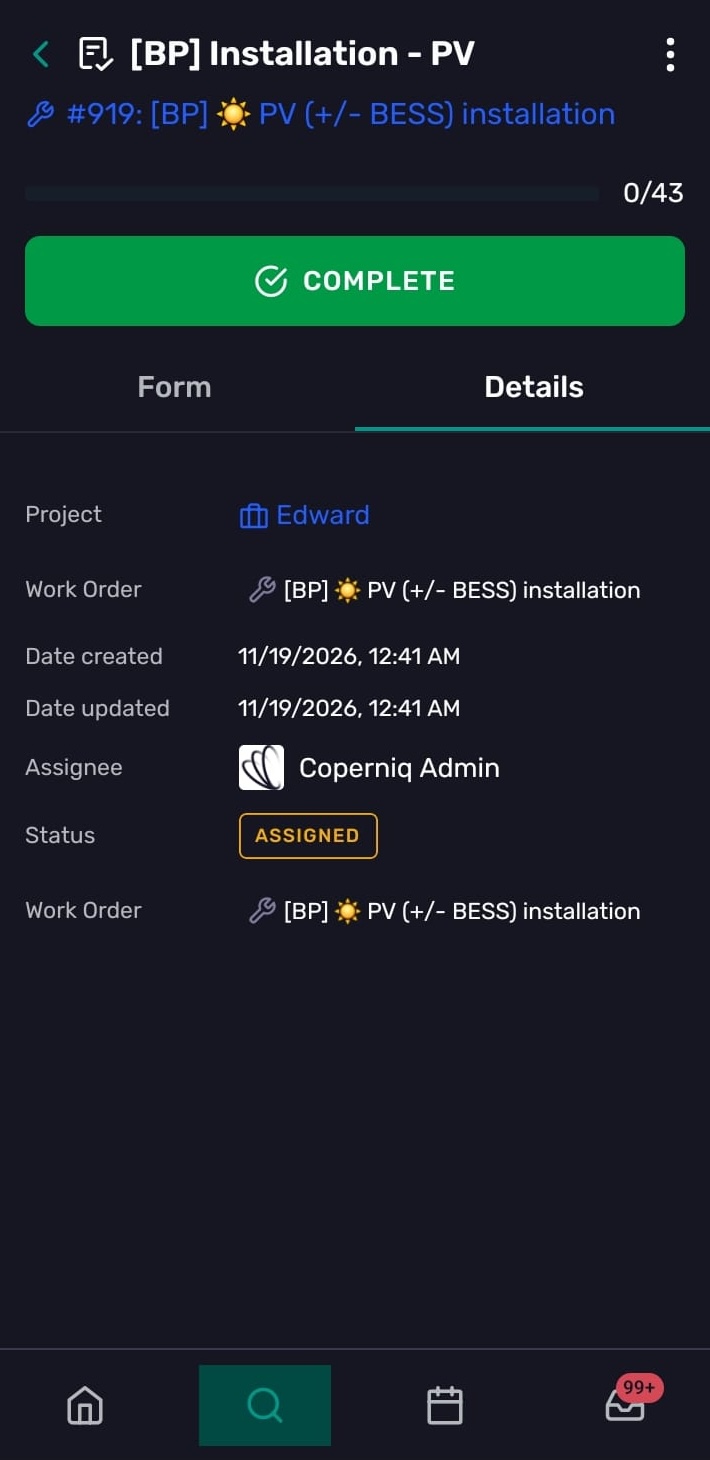
A form includes two tabs: Form and Details.
Form
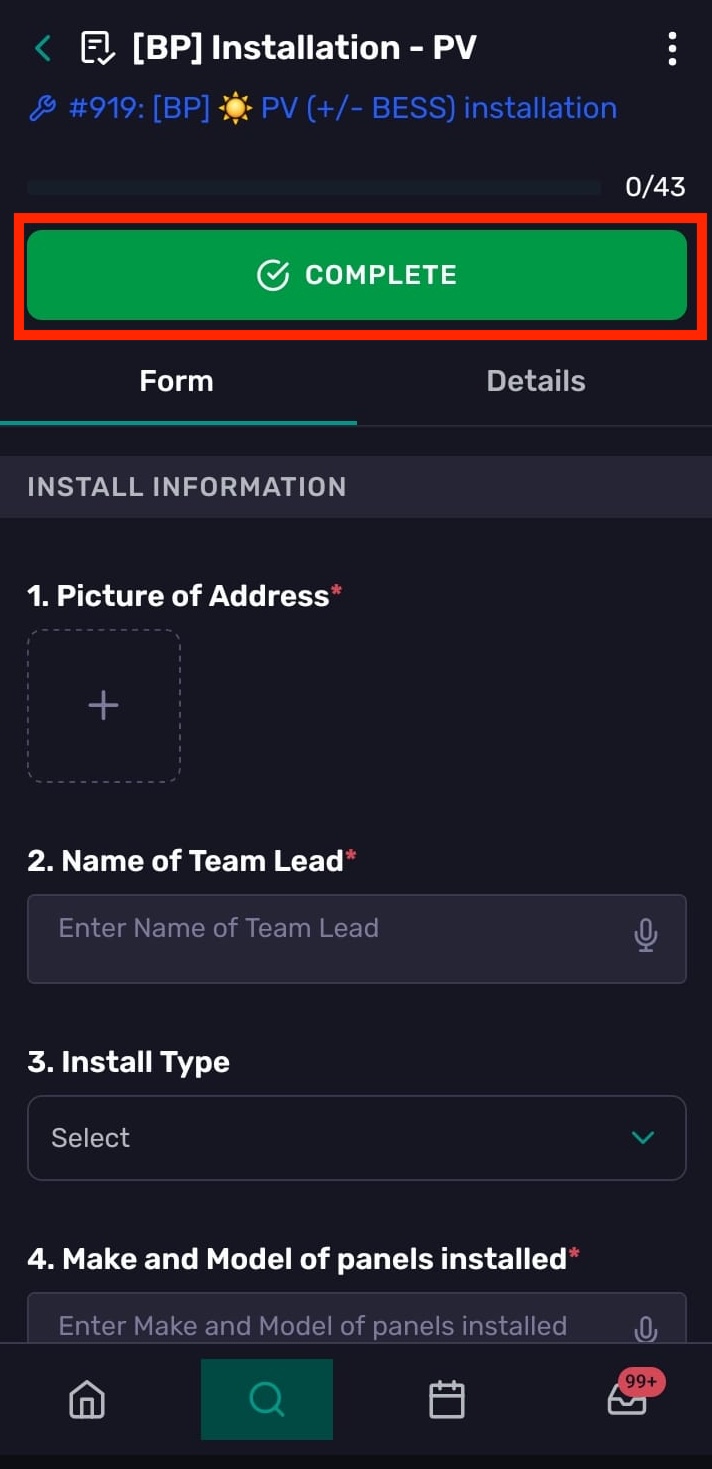
Use Form to fill out the form fields. Forms can include different field types, such as text, dropdowns, dates, people, links, photos, and files.
Details
Use Details to review the form’s related information. This can include blocking or blocked-by items, the related project, the parent work order or task, date created, date updated, workflow, phase, assignee, status, due date, and references.
The status shown on the Details tab is informational. To finish the form, use the Complete button on the form.
Fill out and complete a form
Open the form.
Complete each required field.
Add photos or files to file fields when needed.
Tap Complete when the form is ready.
Form fields save as you work, so there is no separate Save button for each field.
If required fields are missing, Coperniq shows a message and moves you to the first required field that needs attention. Complete all required fields before marking the form as completed.
If photo review is enabled, Coperniq may show a review prompt before the form is completed.
Troubleshooting
I can’t change the work order status
Check that your role has permission to edit work orders.
I don’t see the Files section
Files are available only for supported work order types and when the section is enabled in the work order’s template.
I can’t add a comment
Check that your role has permission to create notes. If you attached files or images, wait for them to finish uploading before submitting the comment.
My form won’t complete
Make sure all required fields are filled in. Coperniq will point you to the first required field that needs attention.