Making Calls & SMS from Coperniq
Last updated: November 29, 2025
Estimated reading time: 1–2 minutes
Overview
Coperniq lets you manage calls and SMS in one place. Create shared team numbers, use them for inbound and outbound calls and texting, and control how calls ring your team with routing and fallback options—all inside the platform.
Create a New Calls + SMS Line
A line (phone group) is a Coperniq number shared by a team.
To generate a new number:
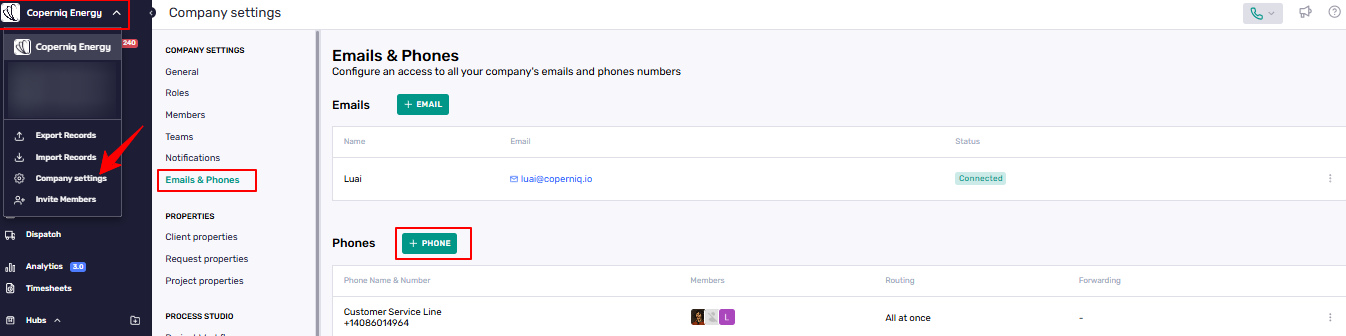
Click your company name (top-left).
Go to Workspace Settings → Email and Phones.
Click + Phone.
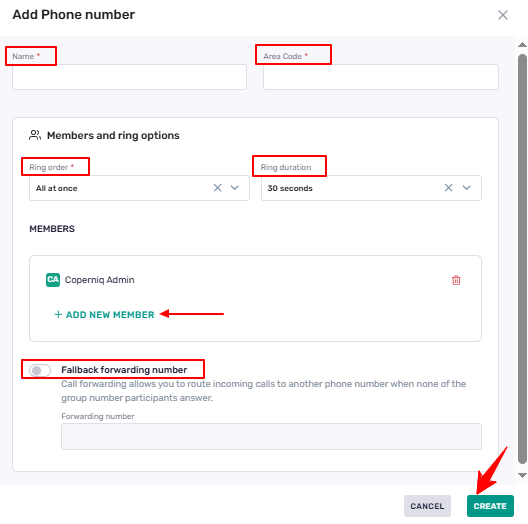
Enter:
Name — the line name used for both calls and SMS (e.g., Sales, Dispatch, Support).
Area Code — choose your preferred area code.
Configure Members and ring options:
Ring order
All at once: rings everyone together.
Round robin: rings users one by one in order.
Ring duration — how long each ring attempt lasts.
Members — add or remove users who can handle inbound/outbound calls and SMS on this line.
(Optional) Fallback forwarding number — forward calls if no one answers.
Click Create.
Your new number is now ready as a shared Calls + SMS line.
Make an Outbound Call
Click the phone icon (top-right).
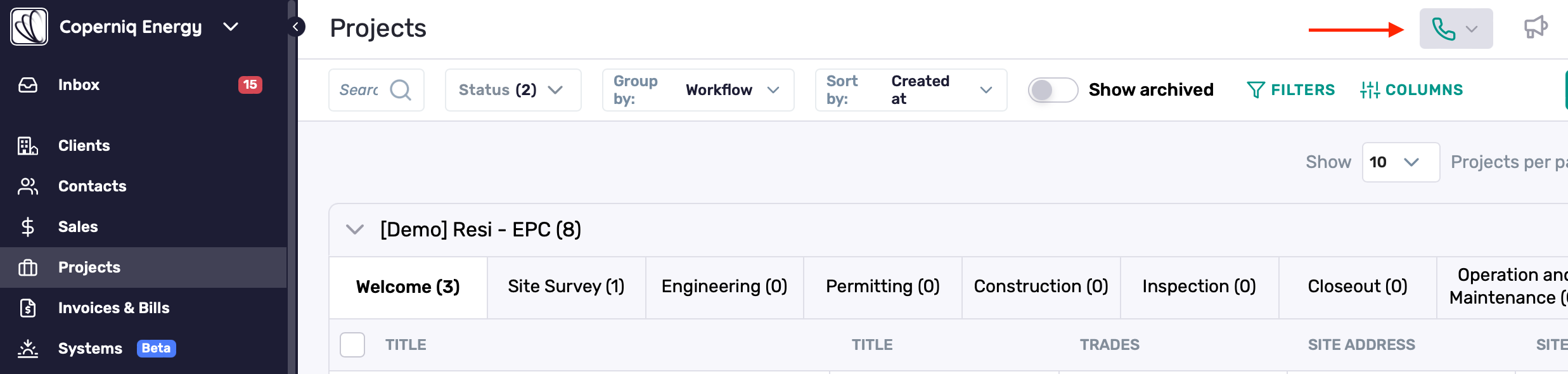
In the phone panel:
Select a line/phone group.
Choose your mic and speakers.
Search for or enter a contact/number.
Click Call.
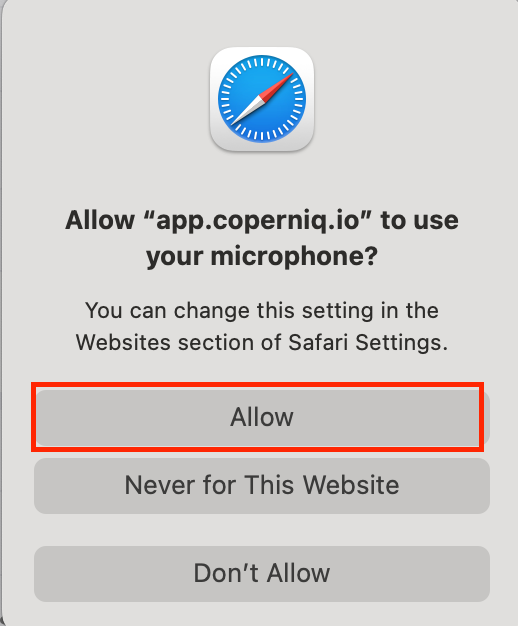
The first time you call, your browser will request microphone access. Click Allow.
Receive Inbound Calls
Inbound calls ring your team based on your settings:
All at once or Round robin
If nobody answers, calls go to your fallback number (if set).
Missed calls appear in your Inbox under Calls, so you can follow up later.

Send an SMS
Open the relevant Client, Request, or Project.
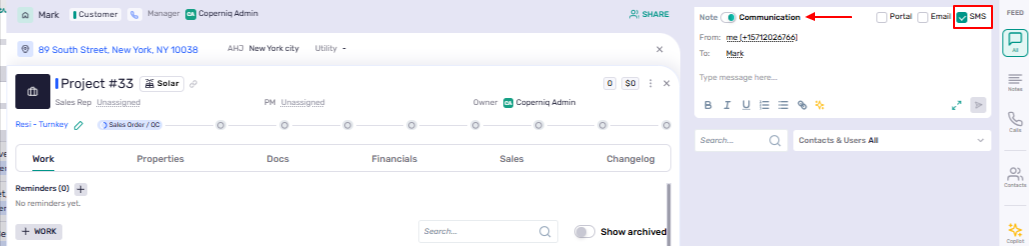
On the right side, switch from Note to Communication.
Select SMS.
Choose the From number (your Coperniq line).
Confirm the To recipient.
Type your message and click Send.
Replies appear in the same Communication thread.
Edit Lines & Routing
Go to Company name → Workspace Settings → Email and Phones.
Click the line you want to edit.
You can update:
Line name
Ring order & duration
Members
Fallback forwarding number
Best Practices
Ensure microphone permissions are granted in your browser
Add a fallback number to avoid missed calls.
Set ring order to match your team flow.
Test calls and SMS with a teammate before going live.
Add relevant team members to each phone number so they can place and receive calls