Create and Manage Proposals
Last updated: October 27, 2026
Estimated reading time: 4 minutes
Overview
Coperniq Proposals help you build and present quotes, give customers pricing and scope details, collect signatures, and define what happens after a proposal is accepted.
There are two proposal types:
Quick Proposal — a streamlined proposal with a single structure and option.
Standard Proposal — a more customizable proposal with configurable pages, multiple structures and options, and additional customer-facing content.
You can create a reusable Proposal Template or build a proposal directly from an Account, Opportunity, or Project.
Start a Proposal
You can start from a reusable template or build directly from a customer record.
Create a Reusable Template
To create a Proposal Template:
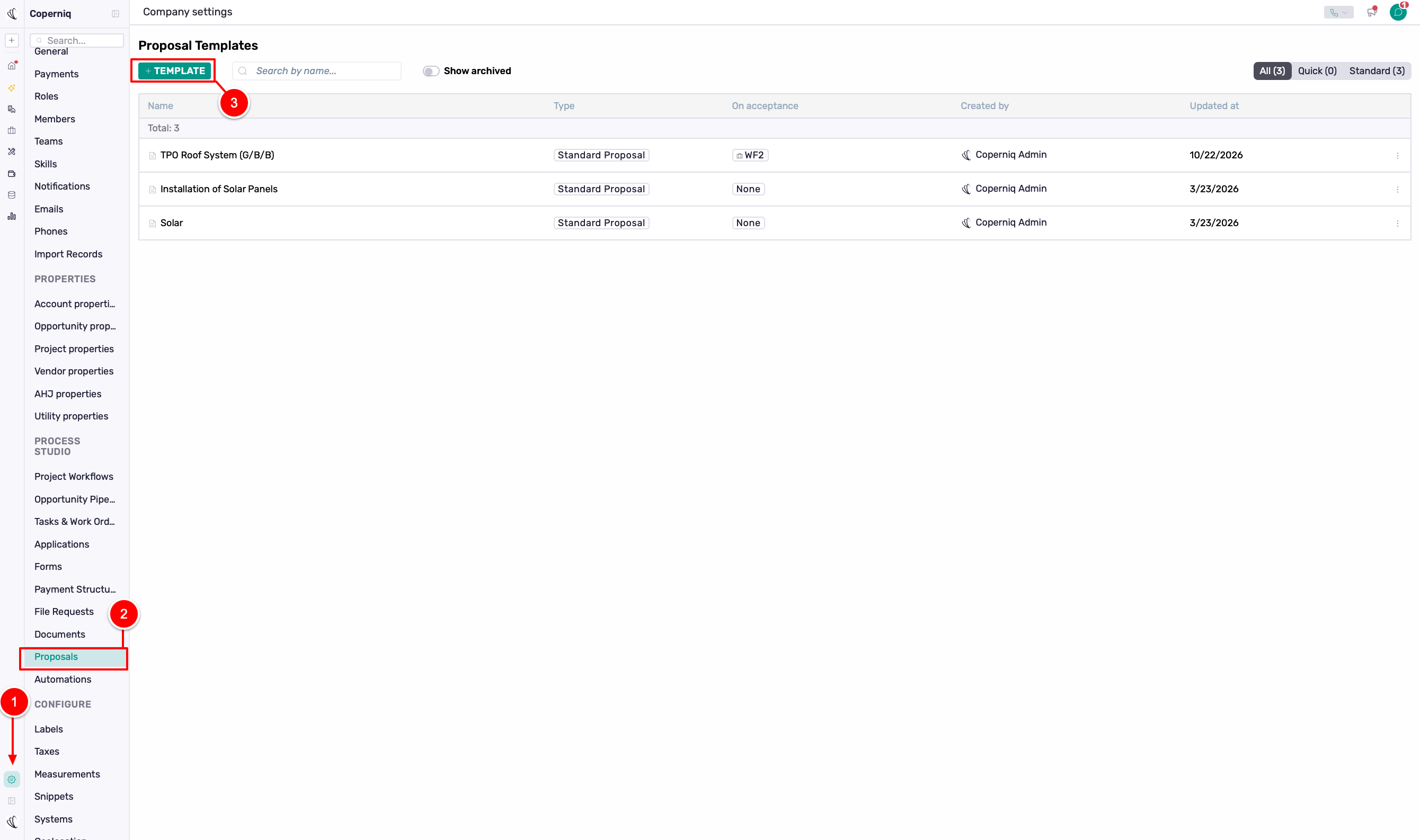
Click the Settings icon in the bottom-left corner.
Under Company Settings, select Proposals.
Create a new template.
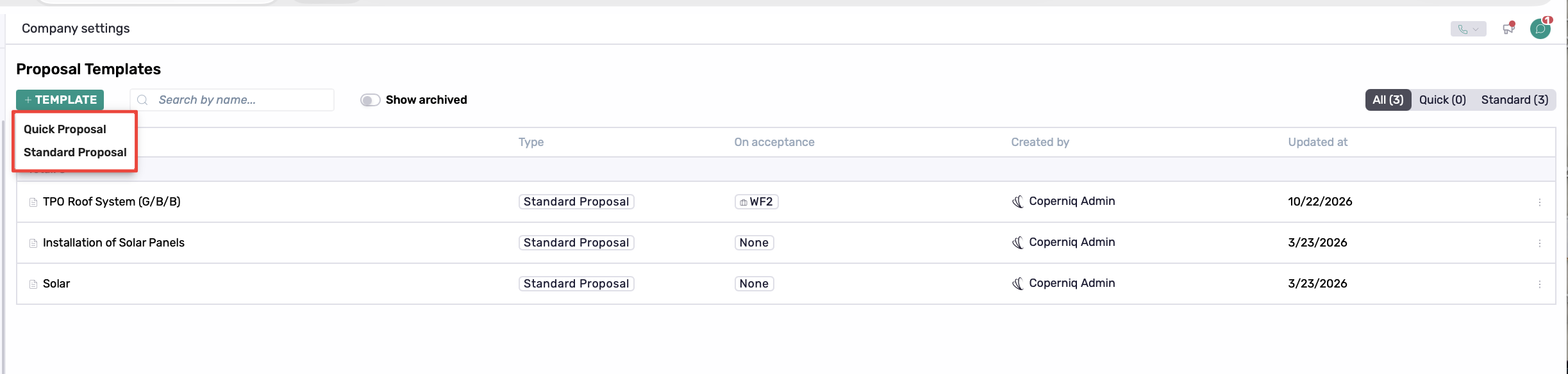
Choose Quick or Standard.
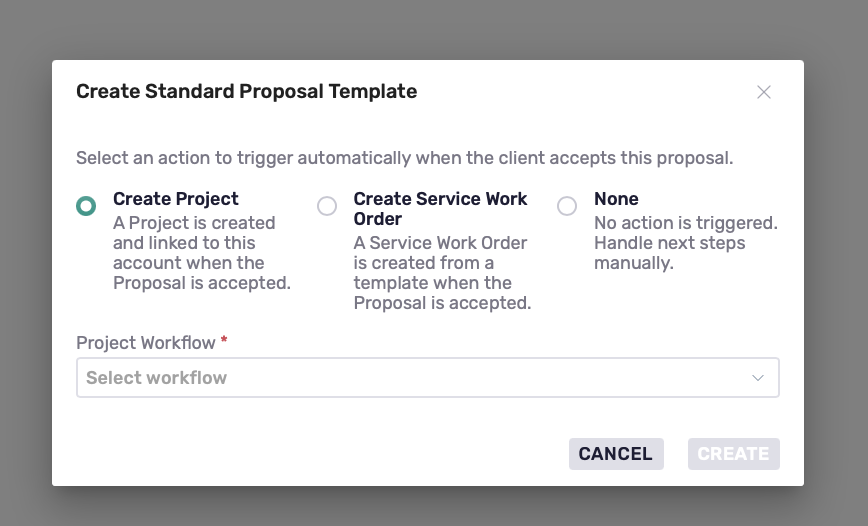
Complete the proposal setup.
Under On acceptance, choose what Coperniq should do when the customer accepts:
Create Project
Create Service Work Order
None
Continue to the Proposal Builder, configure the proposal, and save the template.
The template can then be reused when creating proposals for customers.
Create a Proposal from a Record
You can create proposals from an Account, Opportunity, or Project.
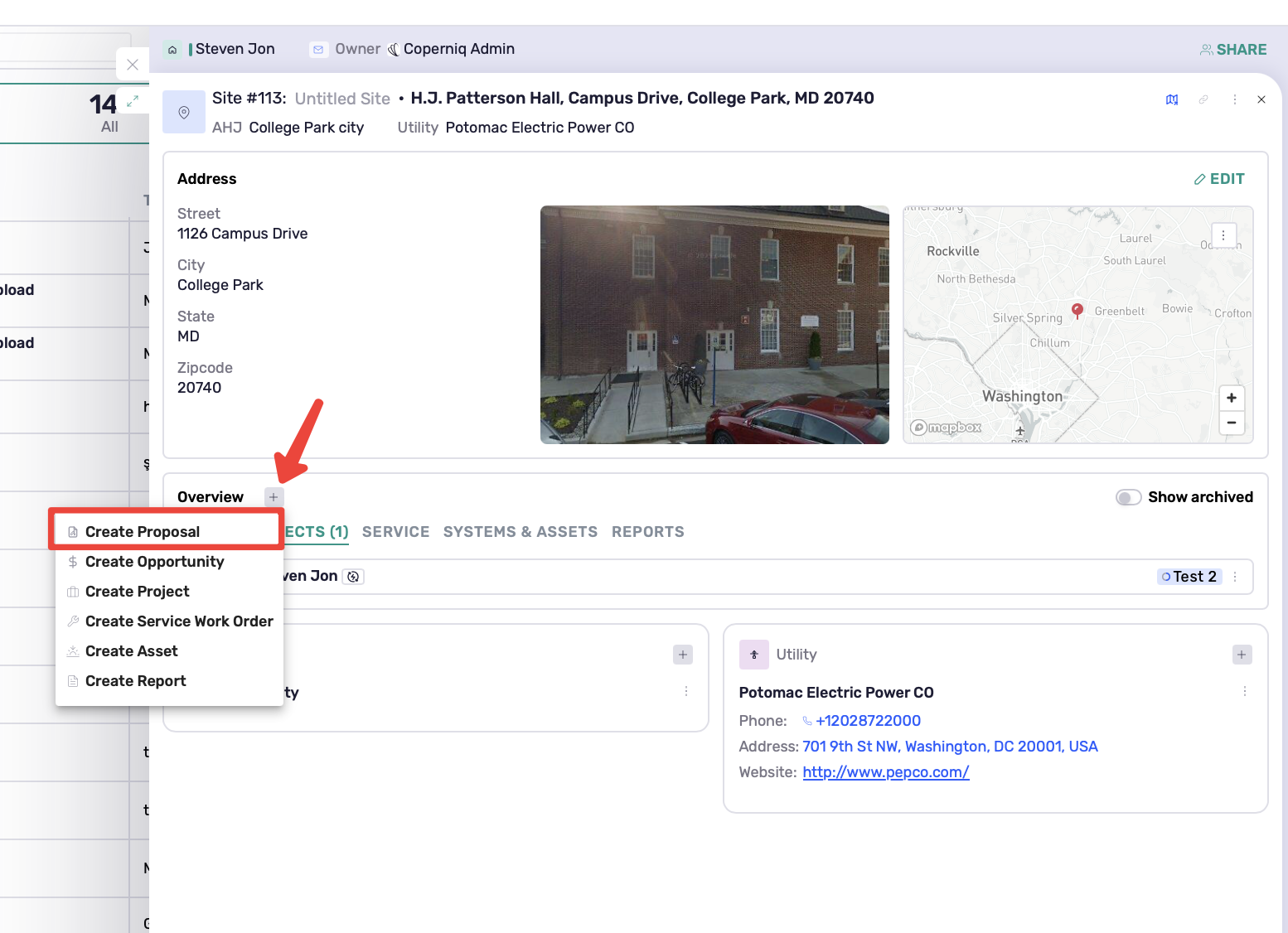
From an Account
Open the applicable Site → click the + next to Overview → select Create Proposal.
From an Opportunity or Project
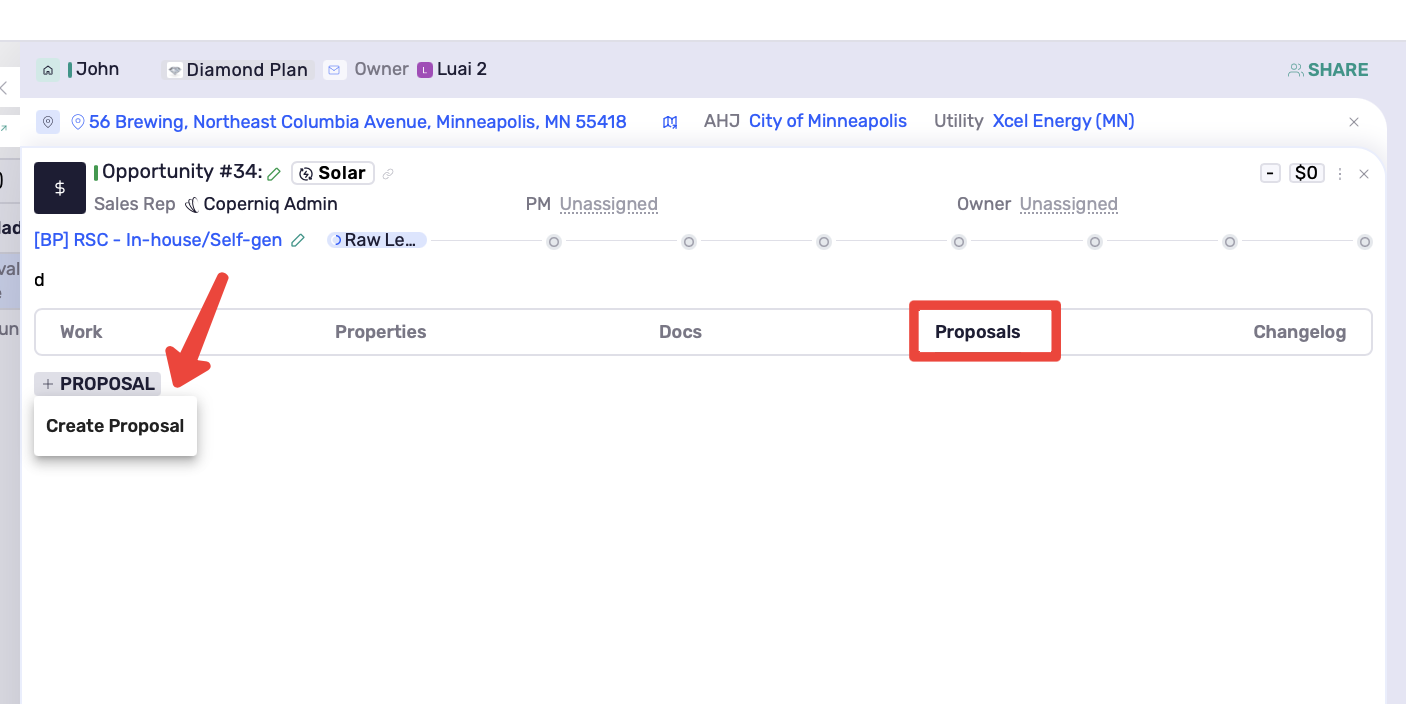
Open the record → go to Proposals → create a proposal.
Choose How to Start
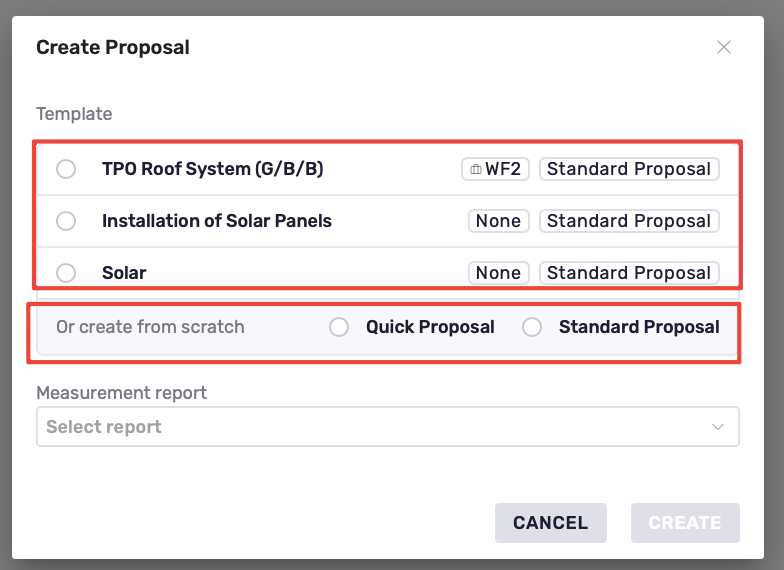
In the Create Proposal window, choose:
From a template — select one of your existing Proposal Templates.
From scratch — select Quick Proposal or Standard Proposal.
Select the Measurement report, when applicable, then click Create to open the Proposal Builder.
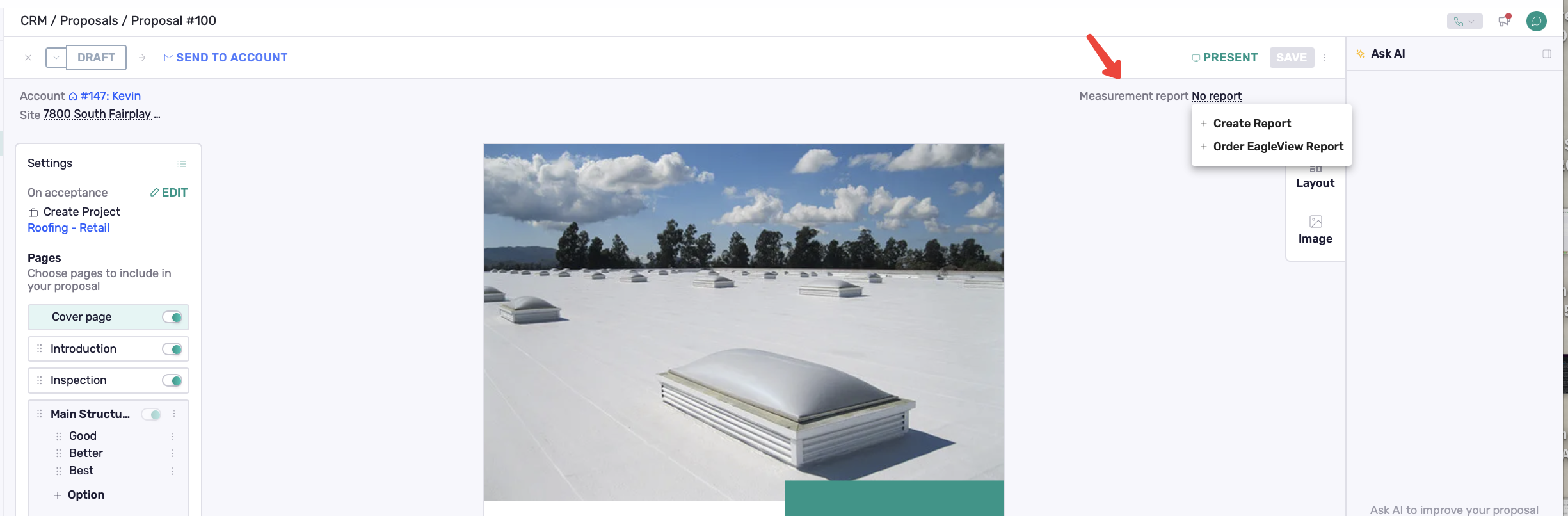
You can also select, change, or order a Measurement Report later while building the proposal.
The proposal is automatically associated with the record you started from.
Note: A Quick Proposal cannot be changed to Standard after creation, and vice versa.
Quick Proposals
Quick Proposals provide a streamlined way to build and present a quote using a single structure and option.
Configure Options
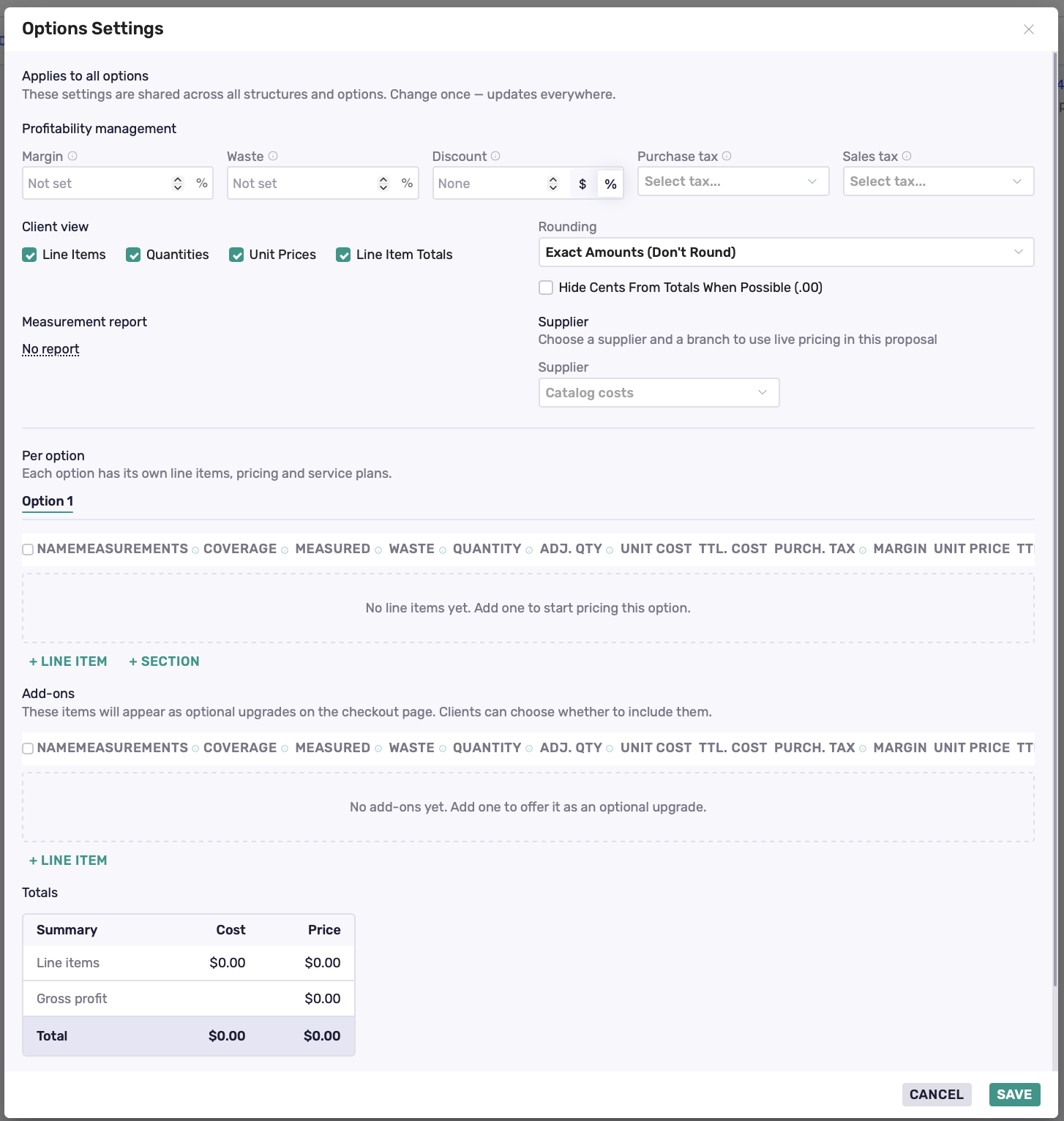
Click Options to open Options Settings.
From here, configure:
Line items and sections — add products and services with + Line Item and organize them with + Section.
Pricing and profitability — configure margin, waste, discounts, and taxes.
Client view — choose which line item and pricing details are visible to the customer.
Supplier — when ABC Supply is connected, select an ABC Supply supplier and branch to use live pricing in the proposal.
Rounding — control how proposal amounts are displayed.
Measurement report — select an existing measurement report, create a new one, or order an EagleView report when EagleView is connected.
Add-ons — add optional products or services the customer can select.
Service Plans — configure the applicable Service Plans for the proposal.
Set Up Billing
The available Billing Schedule depends on the On acceptance action selected during proposal setup.
On acceptance | Billing Schedule |
|---|---|
Create Project | Deposit + Cash or Financing |
Create Service Work Order | Deposit |
None | No Billing Schedule |
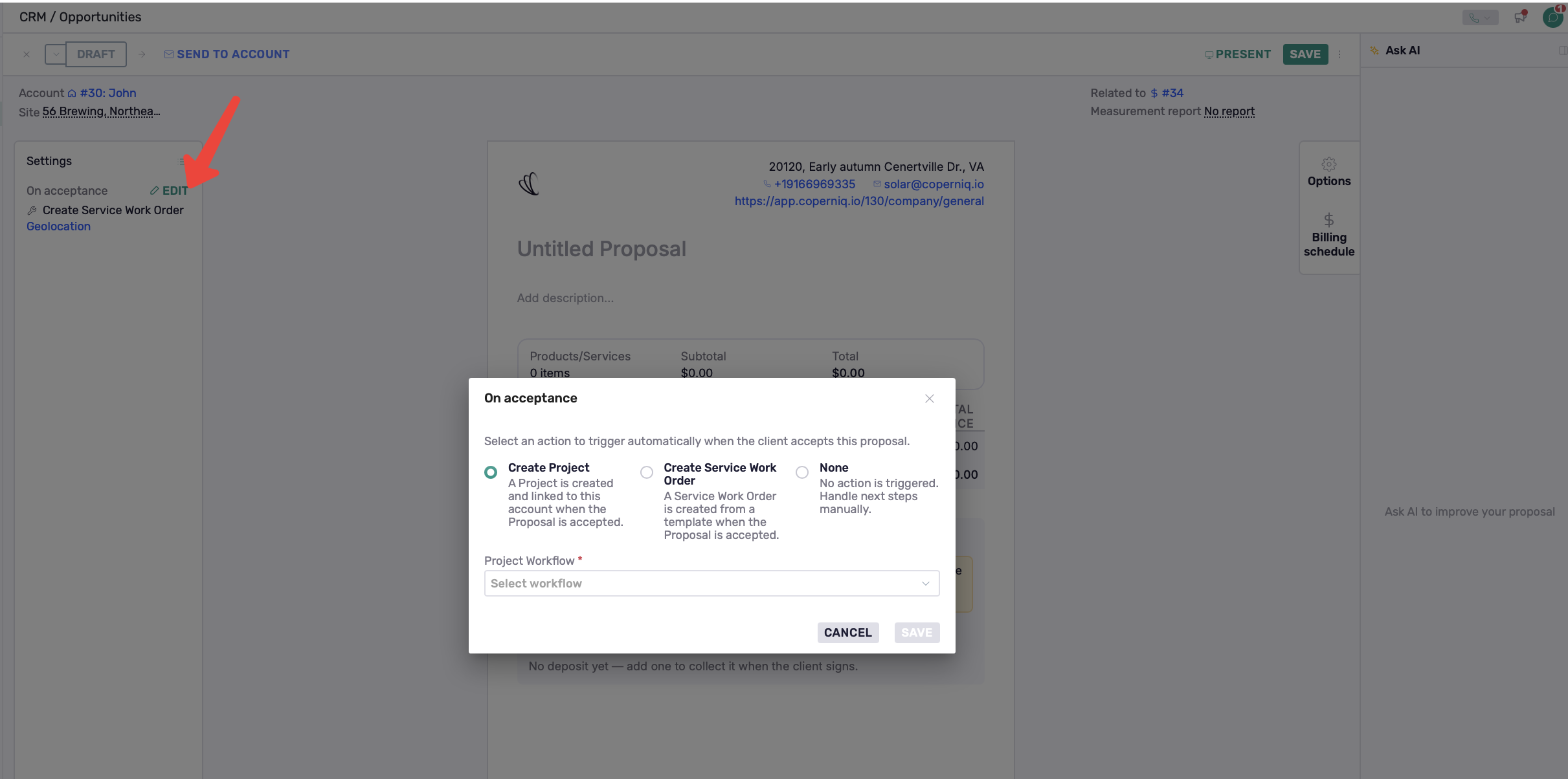
Create Project
Configure the Deposit, then choose the Ownership type:
Cash — choose Milestone or Line Item billing. Milestones can be set as a fixed amount or percentage and associated with a Project Phase.
A milestone assigned to a Project Phase can be invoiced when that phase starts. A milestone without a phase is billed manually.
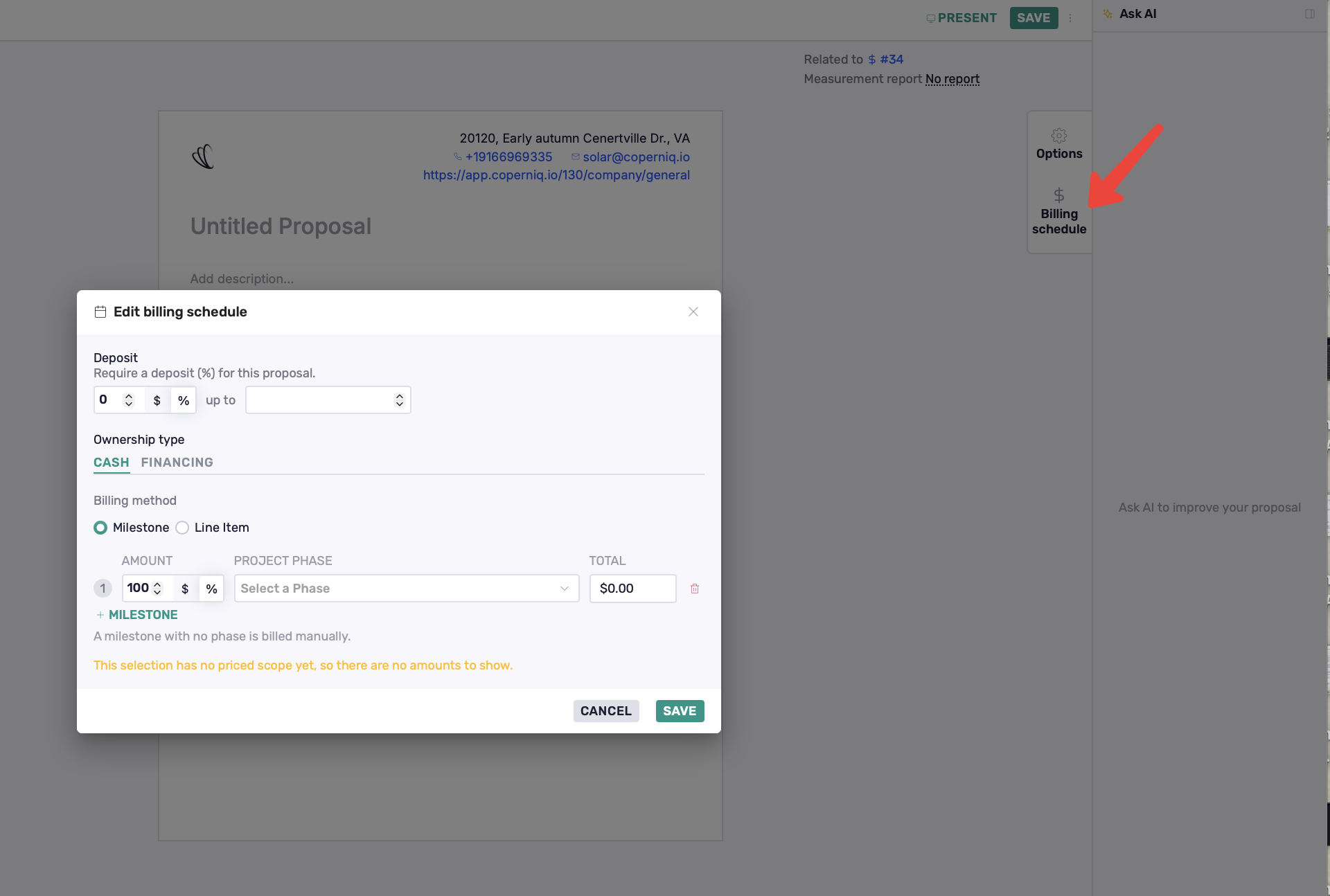
Financing — select one or more Financing products to offer with the proposal. Available products are grouped by financing provider and show the applicable rate and term details.
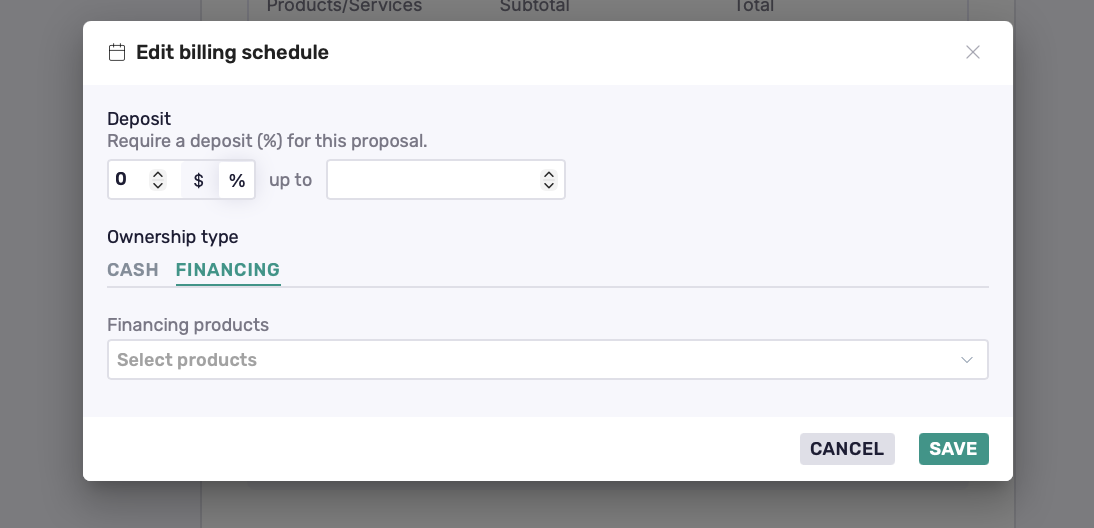
Create Service Work Order
For a Service Work Order, configure the Deposit as a fixed amount or percentage.
Standard Proposals
Standard Proposals give you more flexibility to create detailed proposals with multiple structures and options and additional customer-facing content.
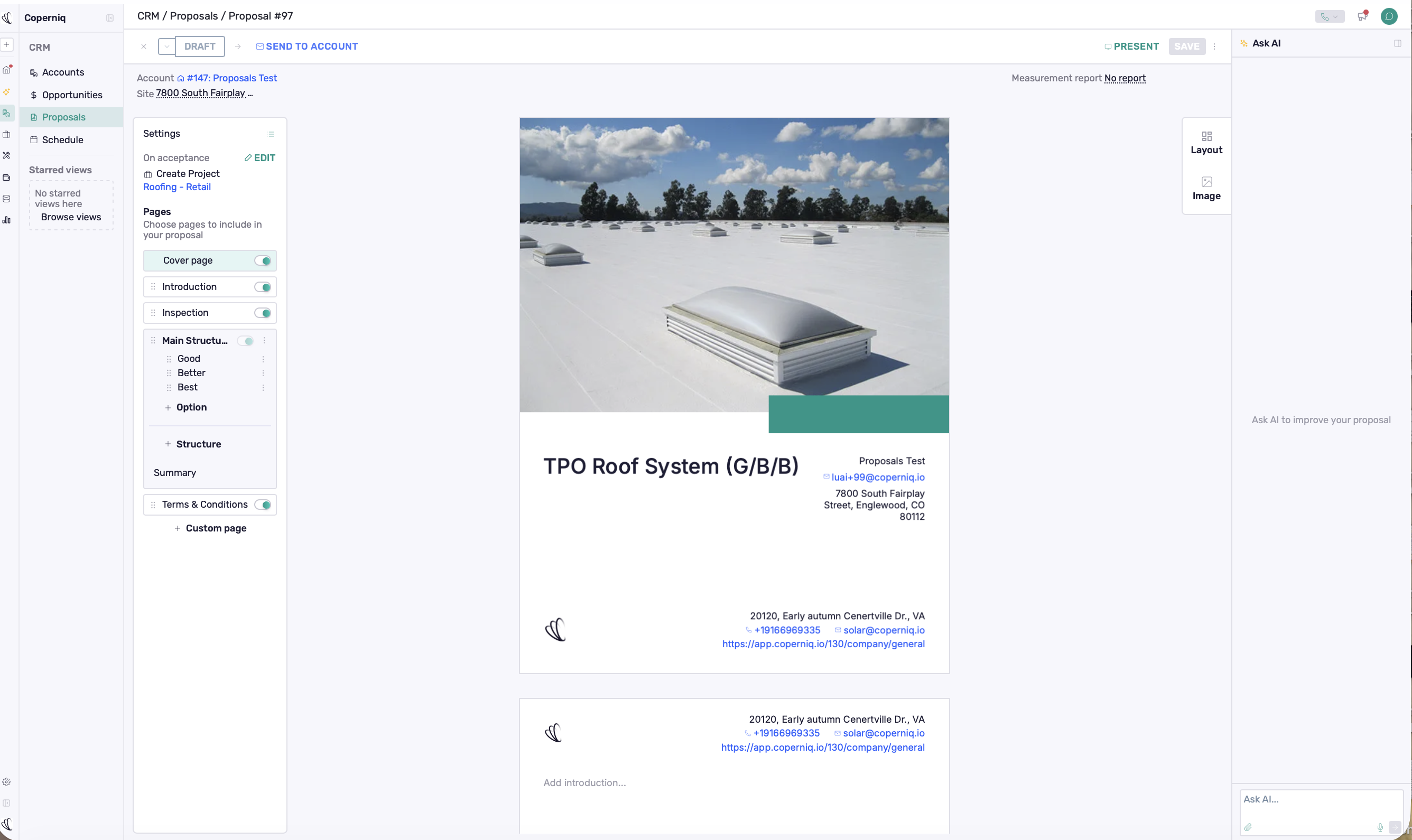
Build Your Proposal Pages
Use the Pages panel to choose and organize what the customer will see.
Available pages can include:
Cover Page
Introduction
Inspection
Structures and Options
Summary
Terms & Conditions
Custom Pages
Turn pages on or off and drag them to arrange the proposal.
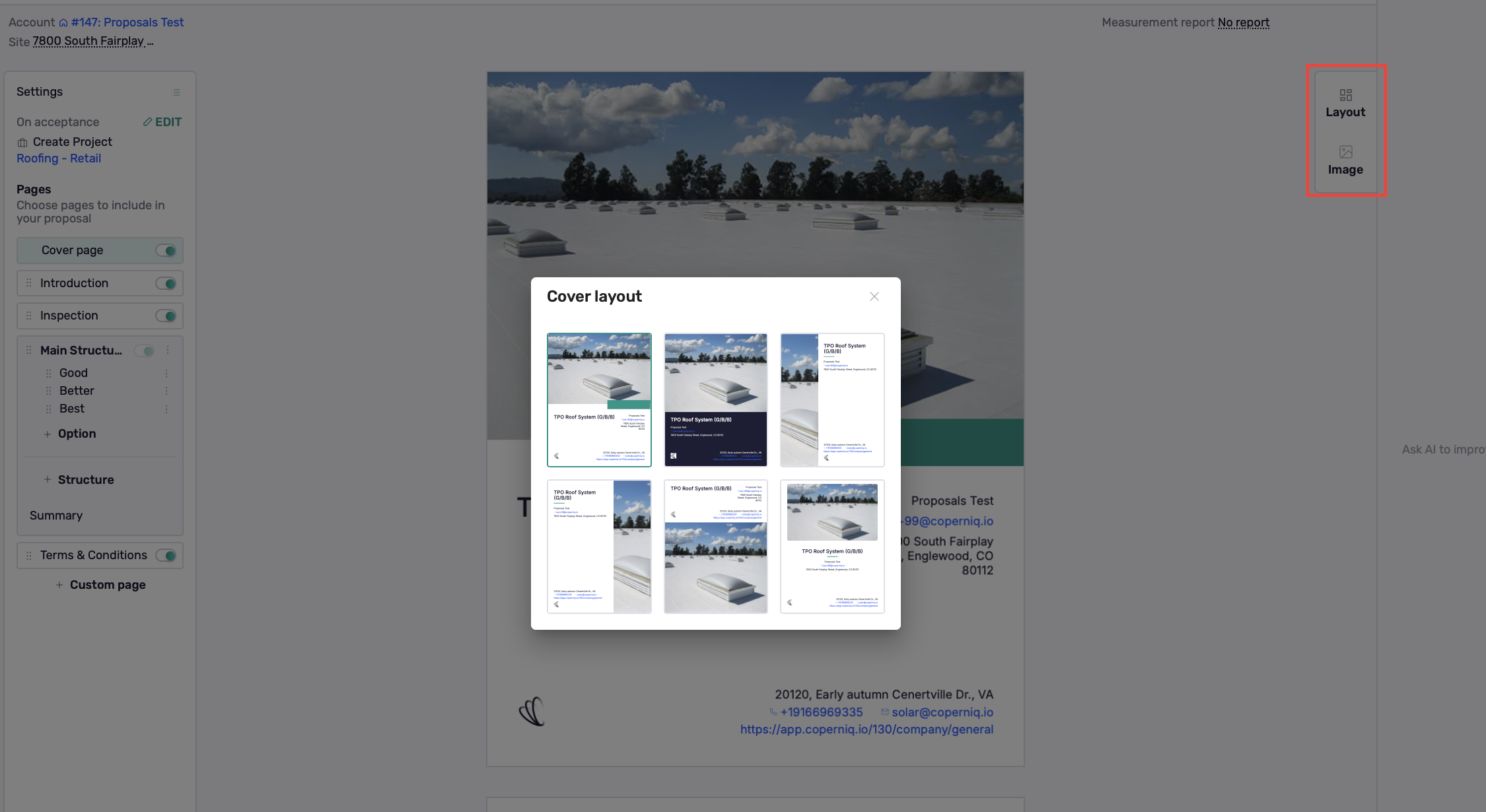
Select a page and use the settings in the top-right to customize it. For example, on the Cover Page, you can change the Layout and Image.
Configure Structures and Options
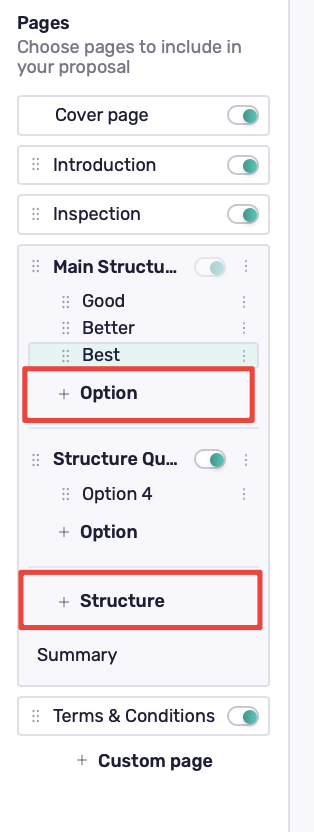
Standard Proposals can include multiple structures, with multiple options under each:
Structure → Option → Line Items
Use the Pages panel to build these choices:
Click + Structure to add another structure.
Click + Option to add an option under a structure.
Use the three-dot menu to duplicate/delete a structure or manage an option.
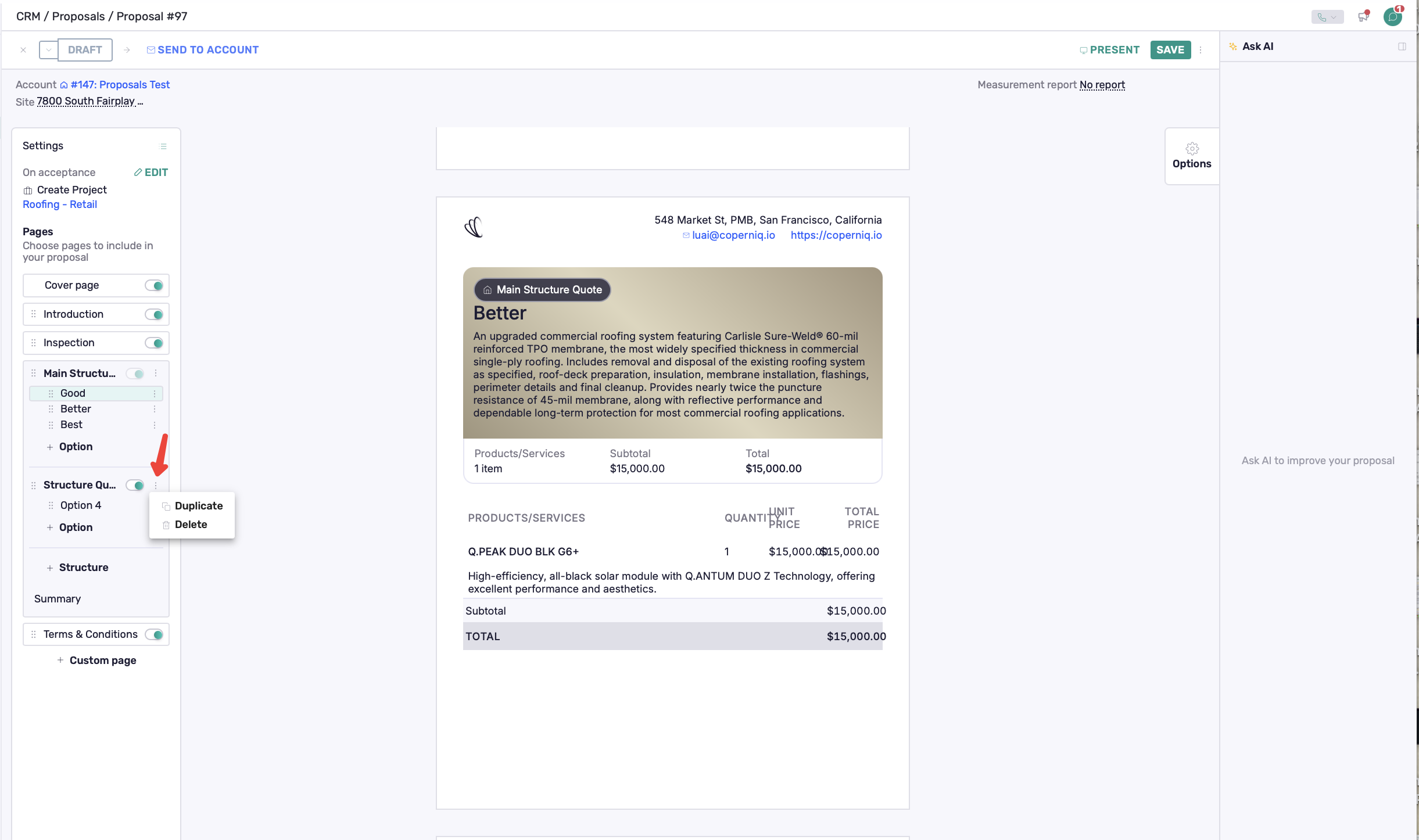
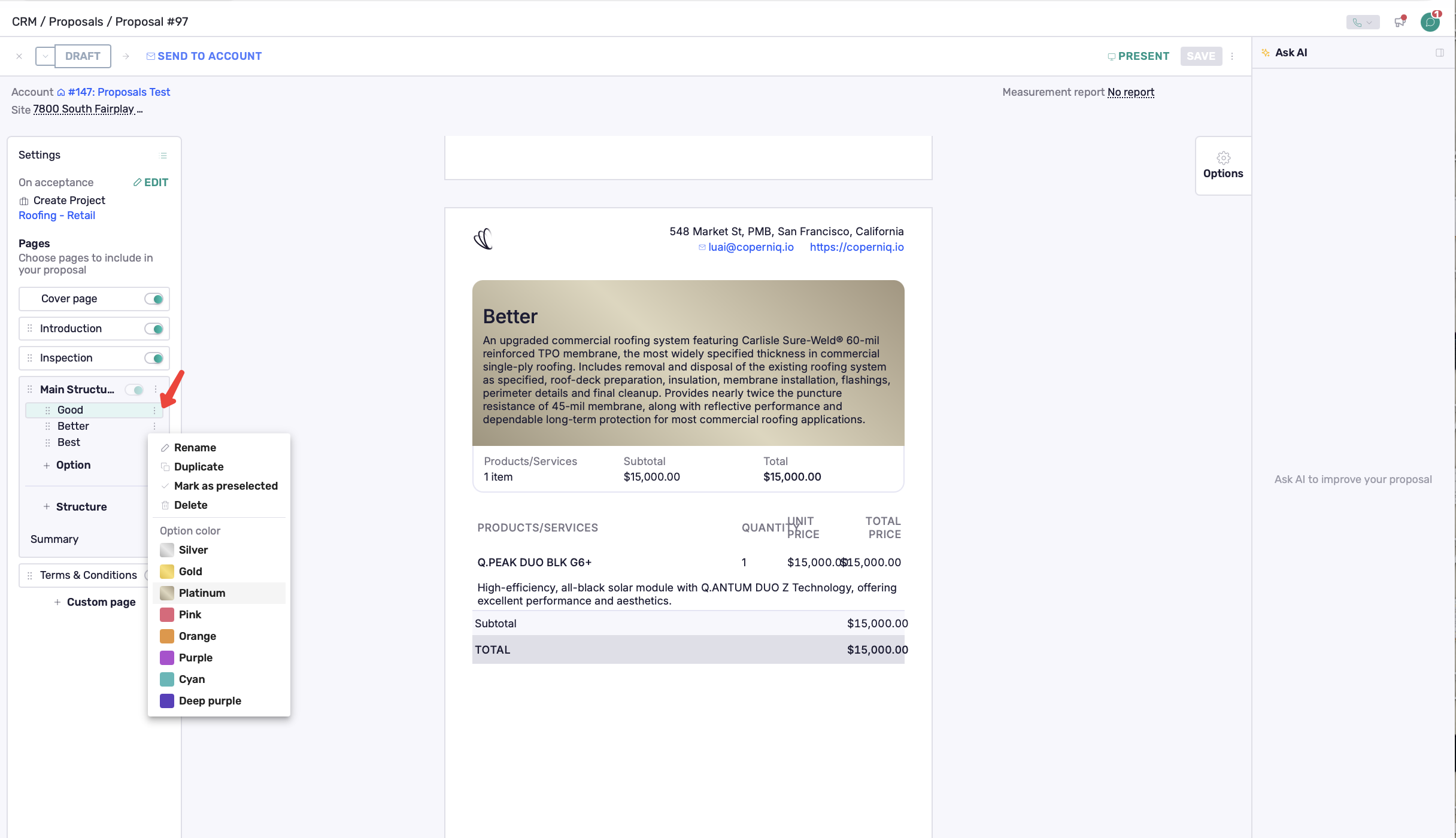
For options, you can Rename, Duplicate, Mark as preselected, Delete, or select an Option color.
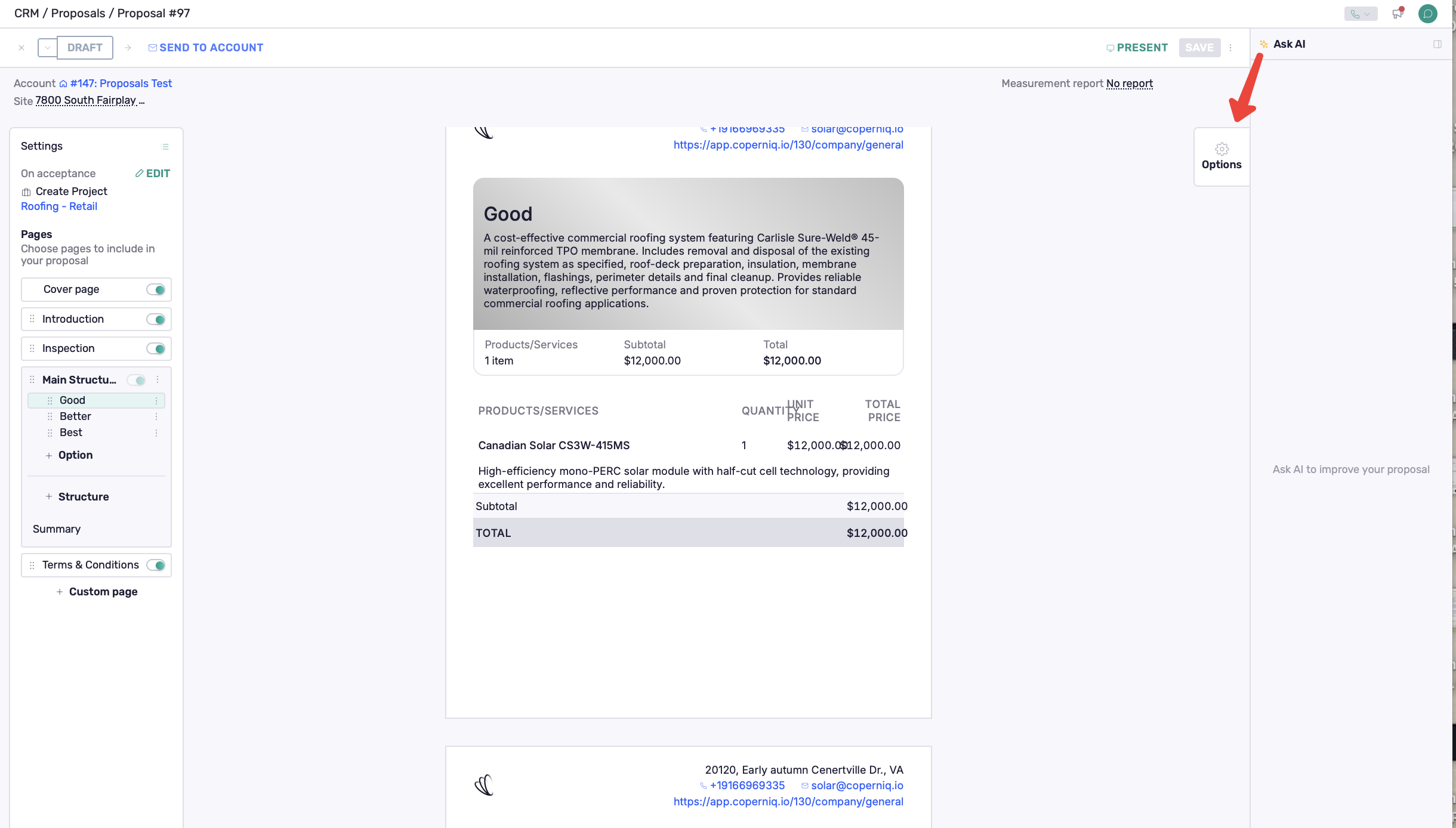
Options Settings
Click Options to configure the settings used across the proposal:
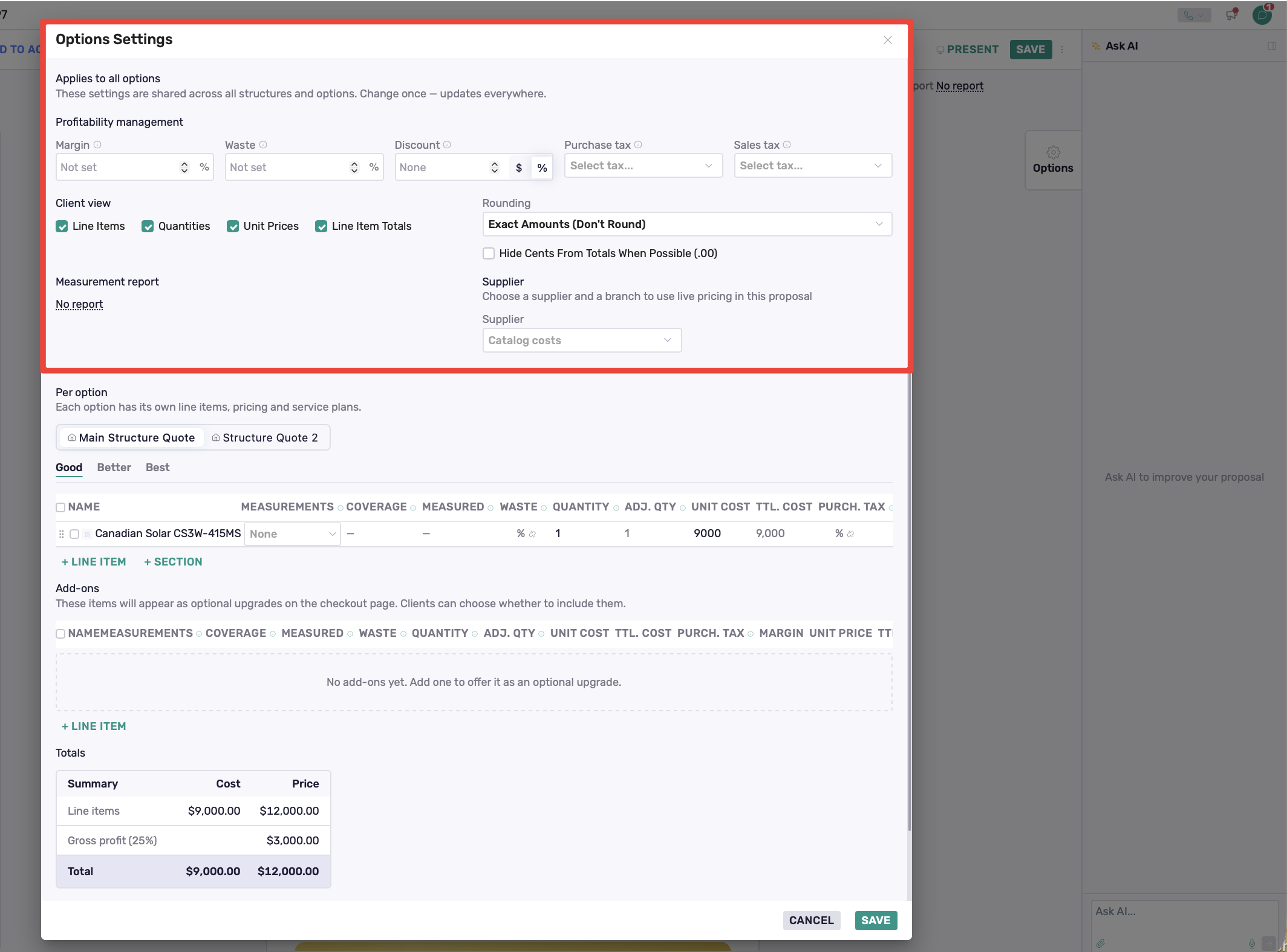
Pricing and profitability — configure margin, waste, discounts, and taxes.
Client view — choose which line item and pricing details are visible to the customer.
Supplier — when ABC Supply is connected, select an ABC Supply supplier and branch to use live pricing in the proposal.
Rounding — control how proposal amounts are displayed.
Measurement report — select an existing measurement report, create a new one, or order an EagleView report when EagleView is connected.
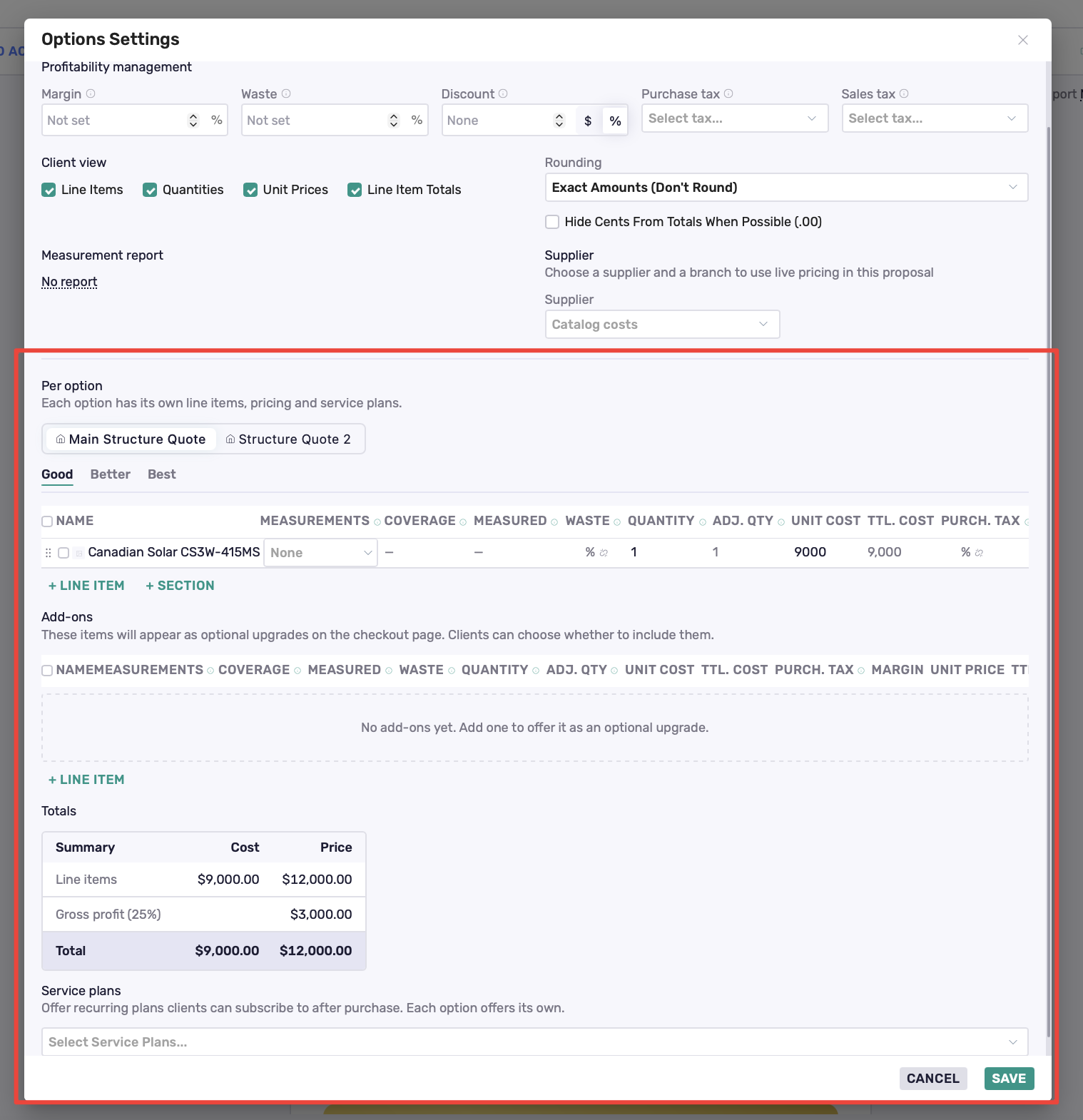
Under Per option, select a structure and then an option to configure its:
Line items and sections — add the products and services included in the option and organize them into sections.
Add-ons — add optional upgrades that customers can choose to include.
Totals — review the option's total cost, price, and gross profit.
Service Plans — add recurring plans customers can subscribe to after purchase.
Switch between structures and options to configure each proposal choice.
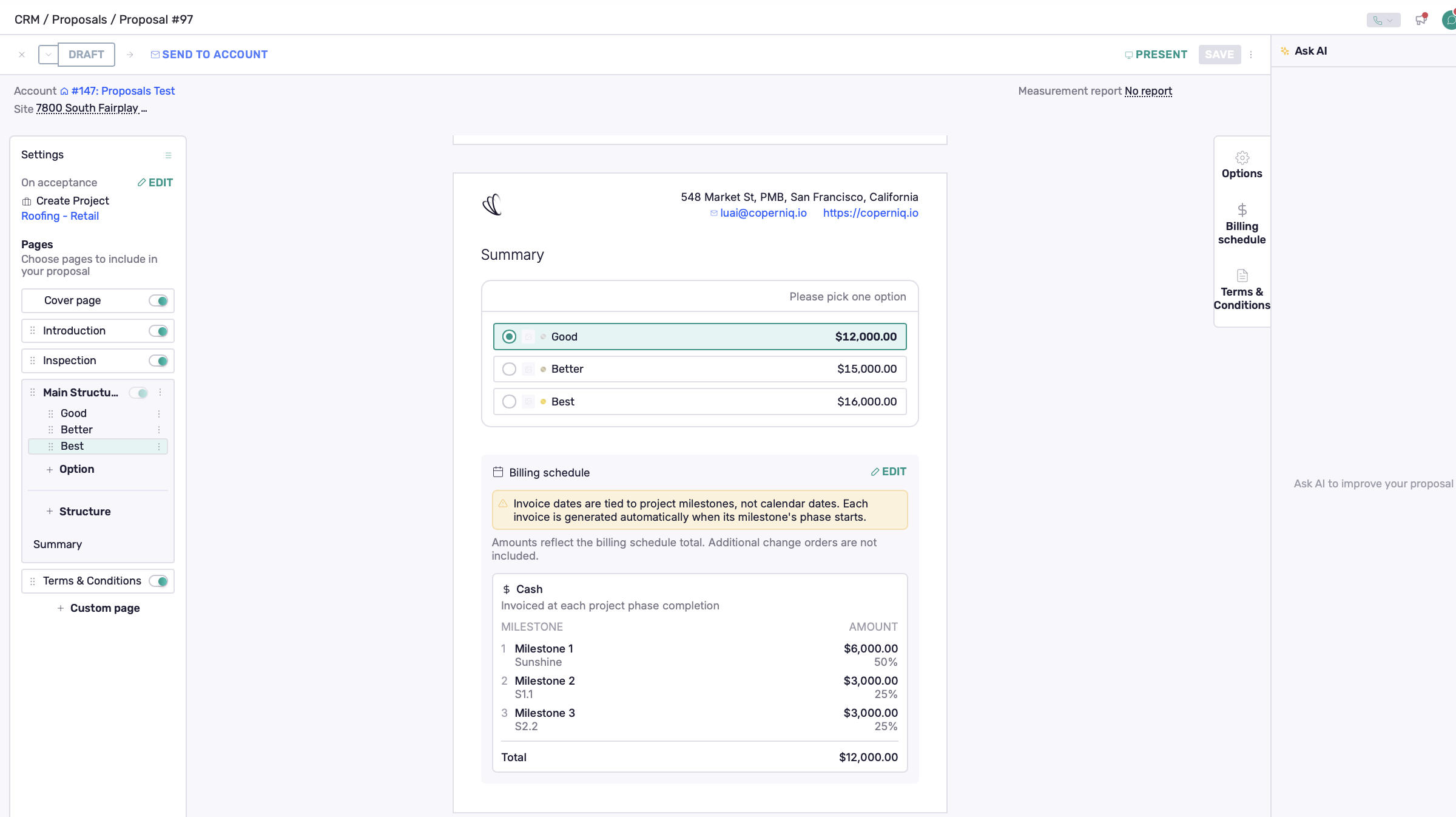
Configure the Summary
The Summary page brings the proposal choices together so the customer can review and select an option.
Select Summary and use Page Settings to configure the page.
When applicable, the Billing Schedule is also presented as part of the proposal.
Add Terms & Conditions
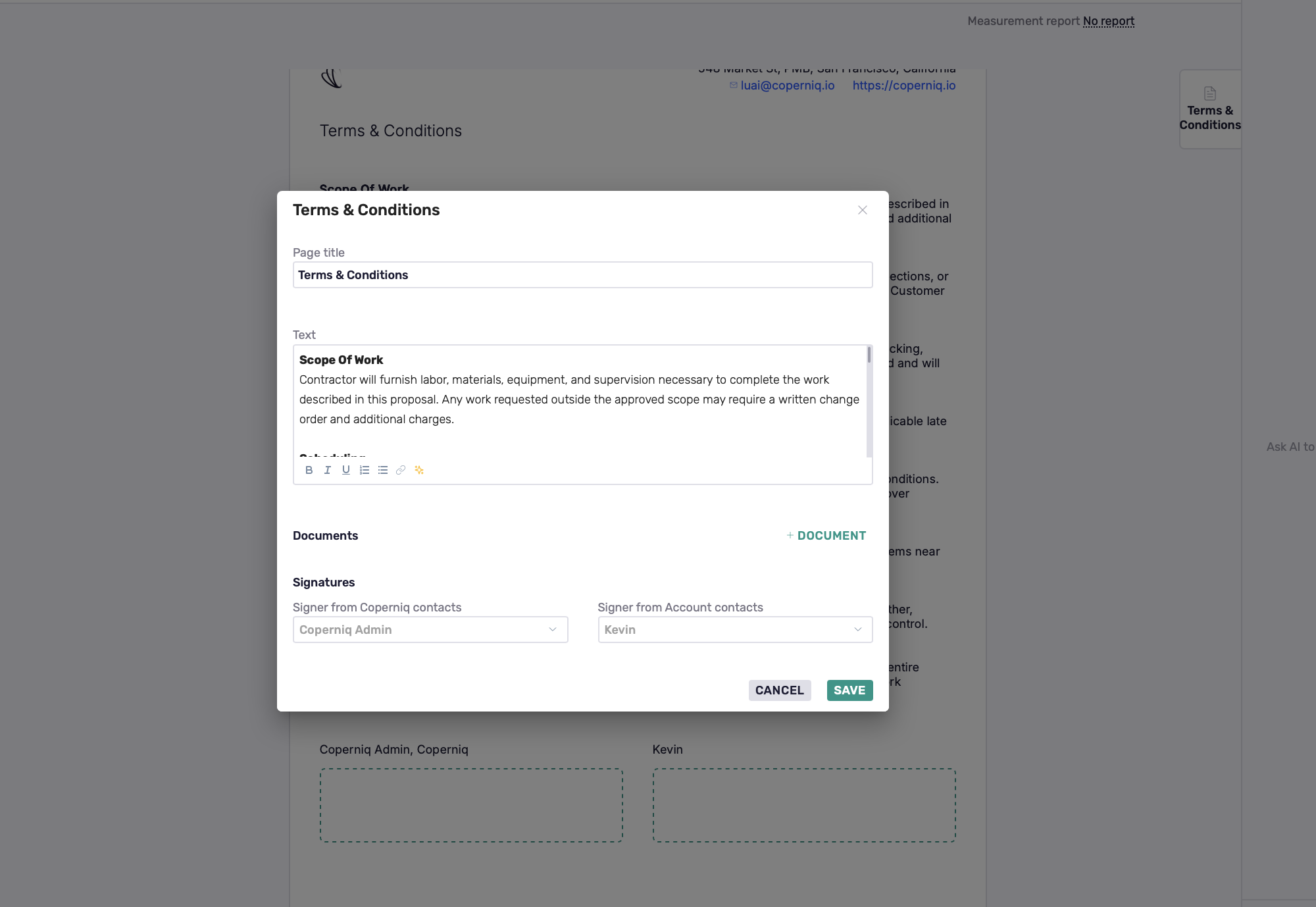
Use Terms & Conditions to add the terms associated with the proposal and configure the required signers.
You can also include supporting files.
Add Custom Pages
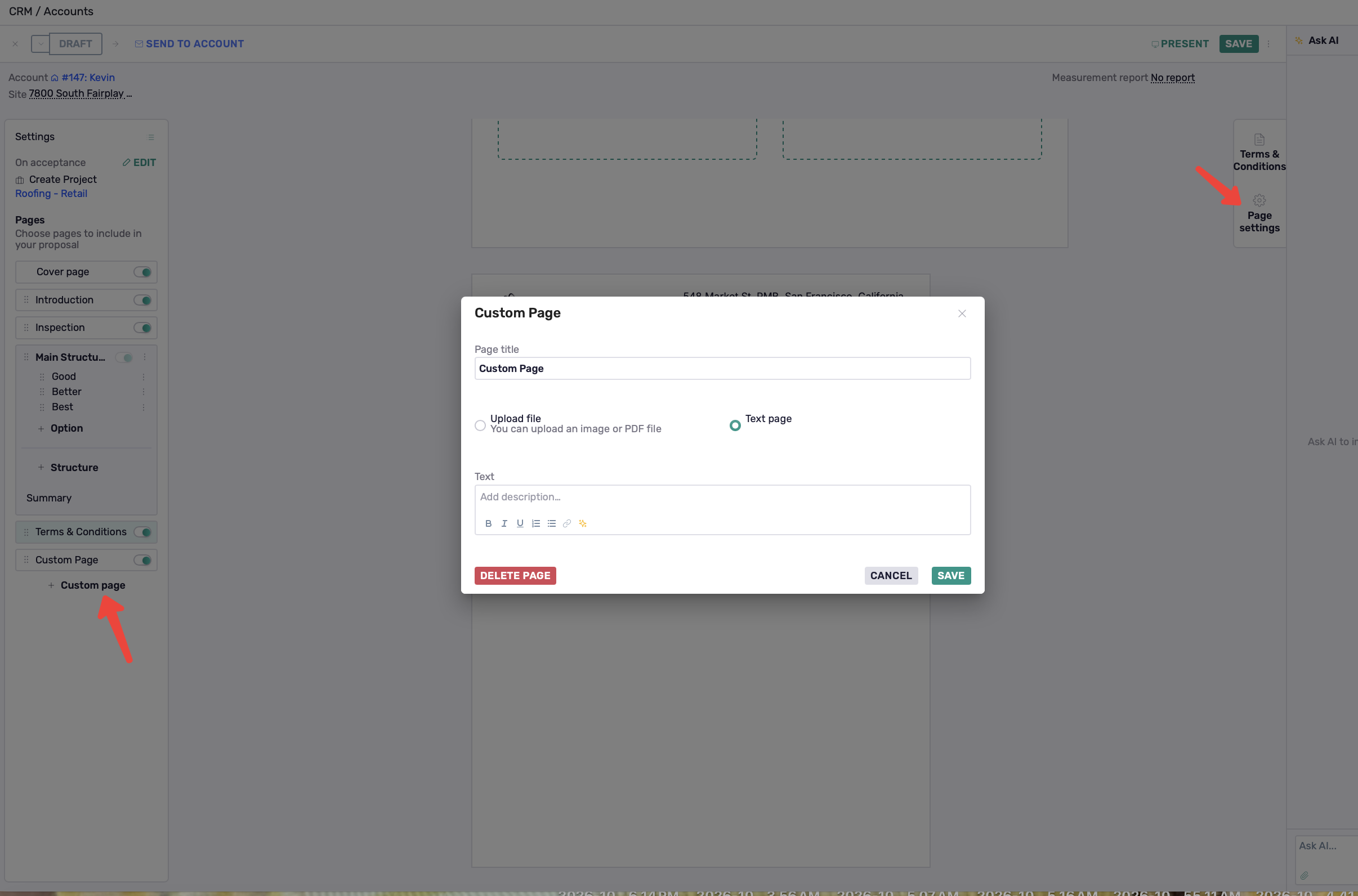
Use + Custom page to add additional customer-facing content.
Choose between:
Upload file — add an image or PDF.
Text page — create a formatted text page.
Select the page and use Page Settings to configure it.
Set Up Billing
The available Billing Schedule depends on the On acceptance action selected during proposal setup.
On acceptance | Billing Schedule |
|---|---|
Create Project | Deposit + Cash or Financing |
Create Service Work Order | Deposit |
None | No Billing Schedule |
For Create Project, configure the deposit and choose the Ownership type:
Cash — choose Milestone or Line Item billing. Milestones can be set as a fixed amount or percentage and associated with a Project Phase.
Financing — select one or more Financing products to offer with the proposal. Available products are grouped by financing provider and show the applicable rate and term details.
Use Ask AI
Use Ask AI while building the proposal to help create or improve customer-facing content.
Review the generated content before adding it to the proposal.
Review and Send the Proposal
Before sending, review the proposal's scope, pricing, Billing Schedule, and customer-facing content.
Click Save to save your changes.
When the proposal is ready:
Click Present to present it directly to the customer.
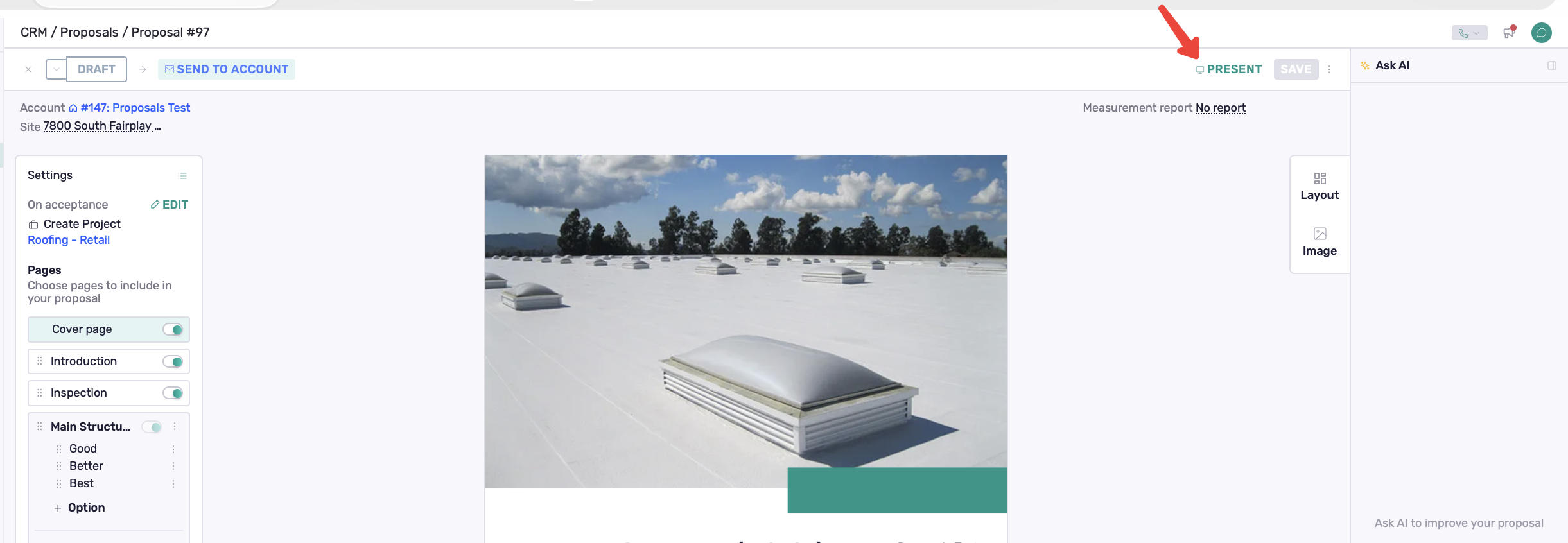
Click Send to Account to send it to the customer for review.
The customer can review the proposal, select the applicable options and add-ons, and complete the acceptance and signing process.
After Acceptance
Coperniq follows the On acceptance action selected during proposal setup:
Proposal accepted → Create Project / Create Service Work Order / None
If Create Project is selected:
From an Account or Opportunity → a new Project is created and accepted line items are added to the Project Scope and documents transferred to the Project.
From an existing Project → no new Project is created; accepted line items are added to the existing Project Scope.
Proposal Notifications
Proposal notifications can be configured for both customers and team members.
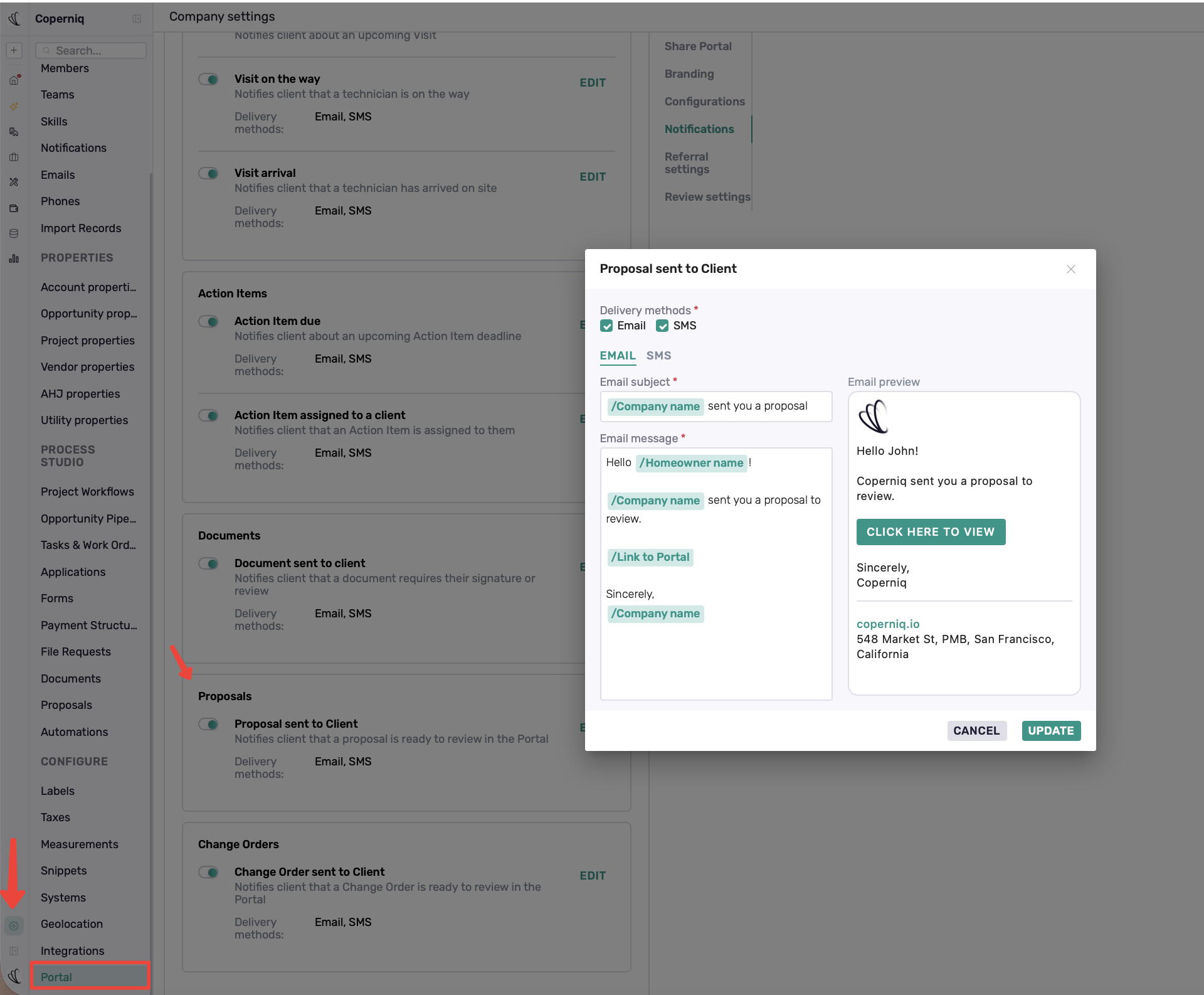
Client Portal Notification
When a proposal is sent to a customer, the Proposal sent to Client notification lets them know the proposal is ready to review in the Client Portal.
Go to Settings → Portal to enable or edit this notification and choose the delivery method:
Email
SMS
Team Notifications
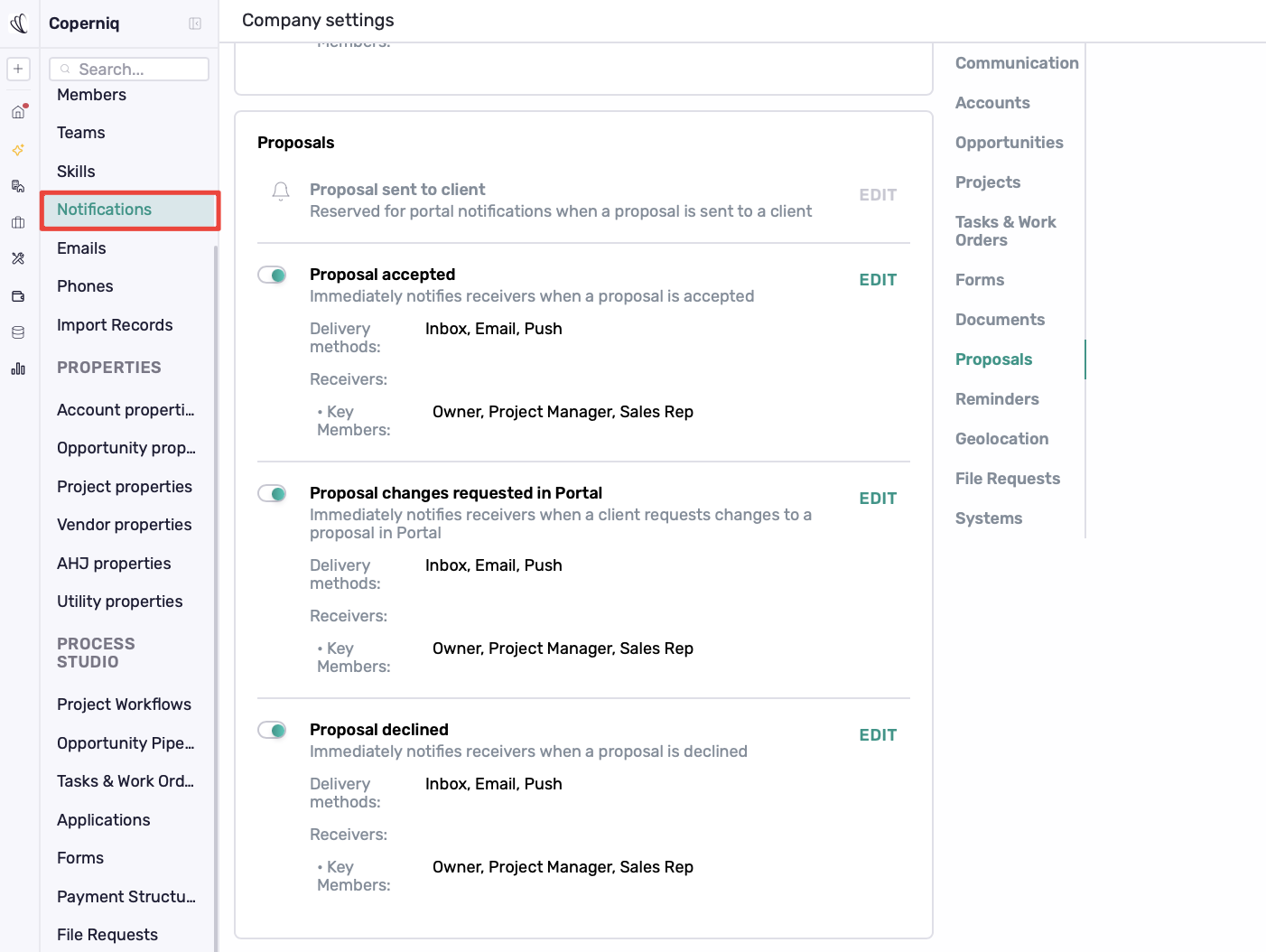
Go to Company Settings → Notifications → Proposals to manage internal proposal notifications.
Team members can be notified when a proposal is:
Accepted
Changes requested in Portal
Declined
For each notification, configure the delivery methods and receivers, such as the Owner, Project Manager, or Sales Rep.
Best Practices
Use Quick Proposals for straightforward quotes
Create reusable templates for proposal formats your team uses regularly.
Review the On acceptance action before sending
Review pricing and supplier costs before sending
Confirm On acceptance before sending.
Preview the customer-facing proposal